Join a meeting
There are three ways in. Pick the one that matches how you received the meeting.
From your Teams or Outlook calendar
-
Open your calendar
Open Teams and click Calendar in the bar down the left. You can also use the calendar in Outlook.
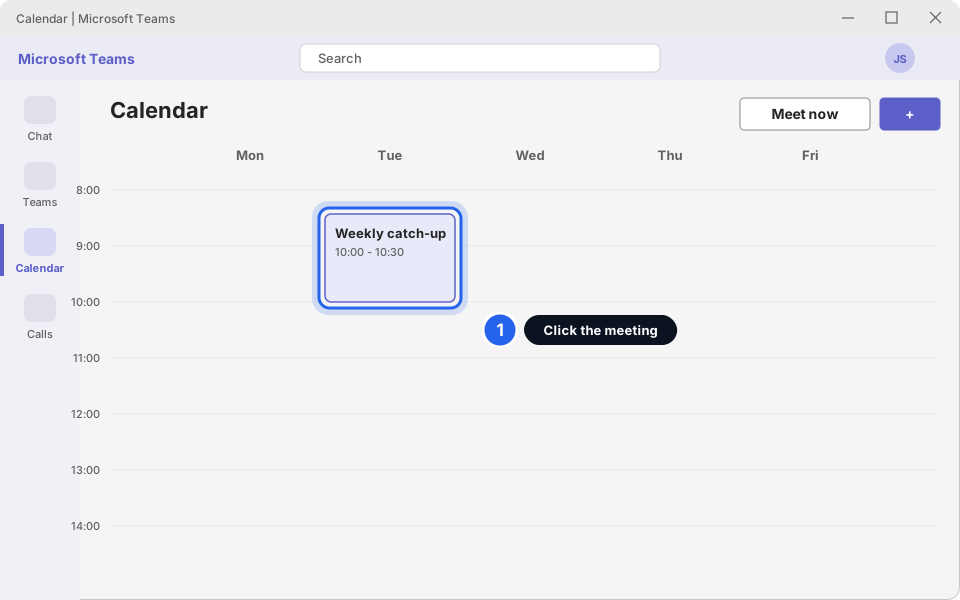
Find the meeting in your calendar and click it.Click picture to enlarge -
Click Join
A small card opens. Click the purple Join button. It appears about 15 minutes before the start time. If you can't see it yet, wait a little.
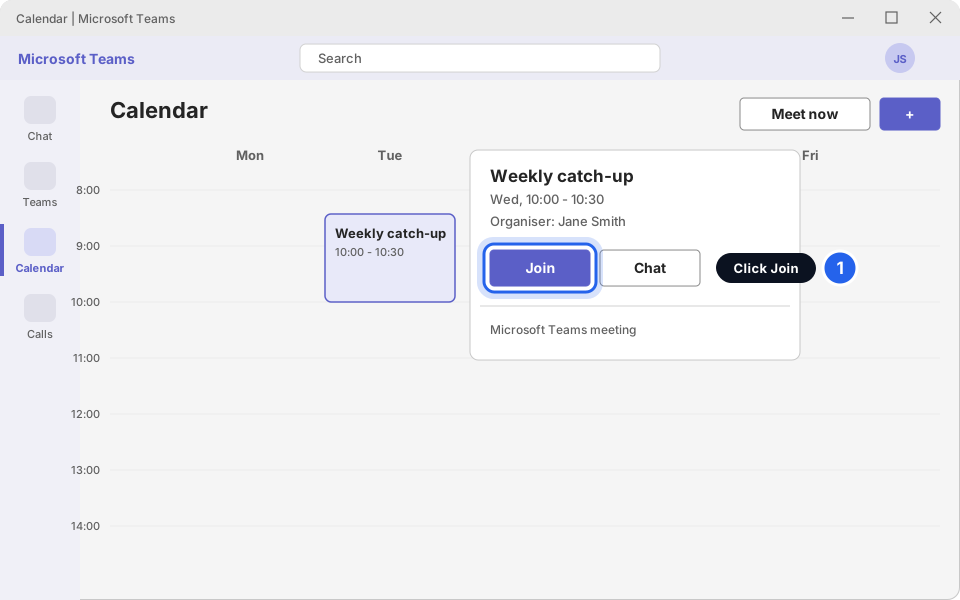
Click Join.Click picture to enlarge
From the link in the email
-
Open the invite email
Open the email that contains the meeting. Look for the words Microsoft Teams meeting.
-
Click Join the meeting now
It is a blue link under the Teams heading. Only click links from people you know. If you were not expecting this invite, ask the sender first.
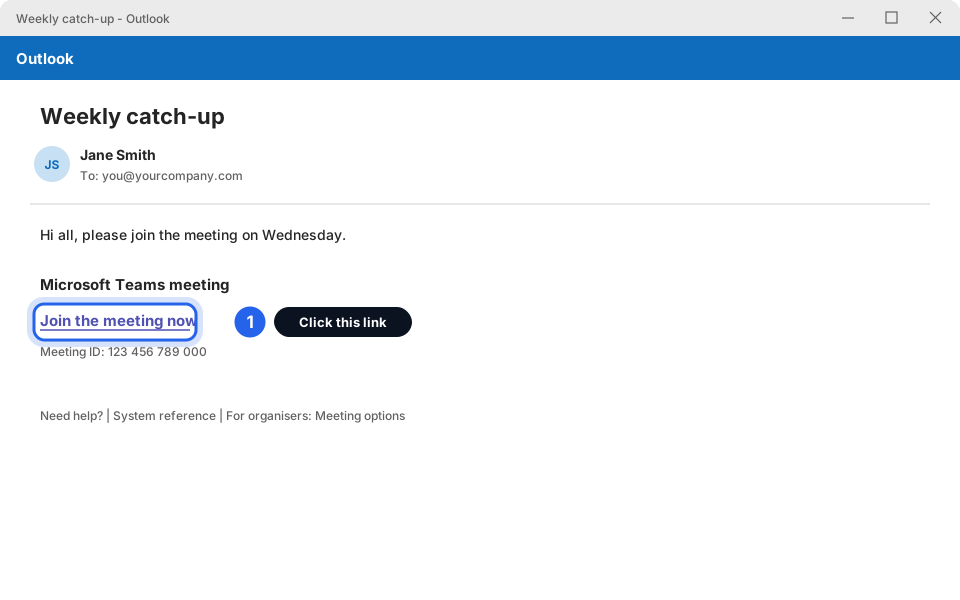
Click Join the meeting now.Click picture to enlarge -
Choose how to open it
Your browser may ask Open Microsoft Teams? Click Open if you have the Teams app. If you don't, or the app does not open, use the web instead (see the next tab).
In your browser, without the app (or as a guest)
-
Click the link and choose to join on the web
After you click Join the meeting now, a page asks how you want to join. Click Continue on this browser (older versions say Join on the web instead). Use Microsoft Edge or Google Chrome on a computer. Phone browsers don't work for this: use the Teams app on your phone.
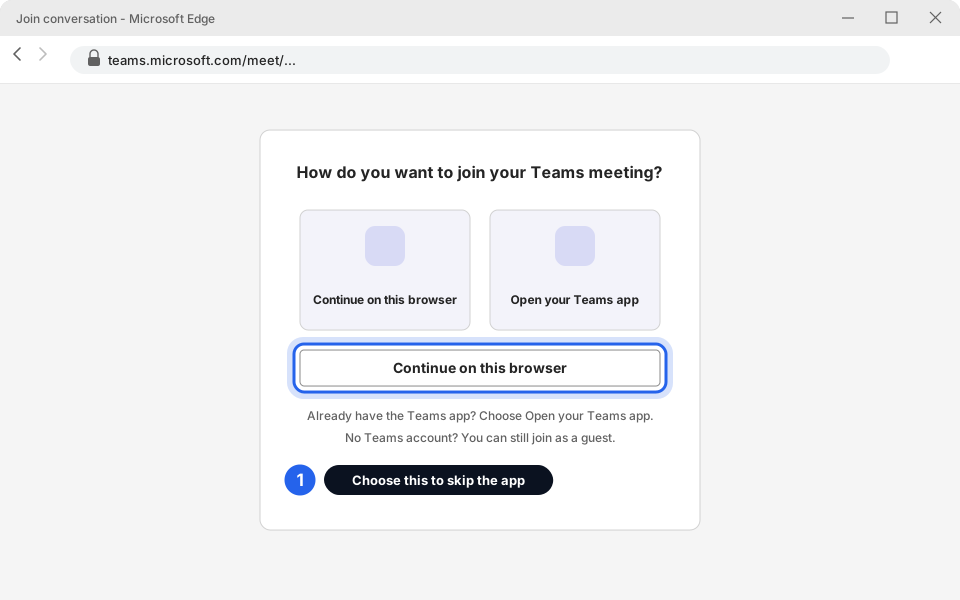
Choose the web option to skip installing anything.Click picture to enlarge -
Allow your microphone and camera when the browser asks
A small box at the top-left of the browser asks for permission. Click Allow. If you click Block by mistake, click the little padlock next to the web address and switch Microphone and Camera back to Allow.
-
Type your name if asked
If you are not signed in, Teams asks for a name. Type your name so the host knows who you are. You may be shown as a guest or unverified, and the host may need to let you in from the lobby. This is normal.
The screen before you join
Before you enter the meeting, Teams shows a screen where you choose your camera, microphone and speaker. Check it every time. Most problems are fixed right here.
-
Check your name, camera and microphone
Look at the two switches at the bottom of the picture of you. Camera and Mic should be on (switch to the right, coloured) if you want to be seen and heard. If you want to join quietly, switch them off.
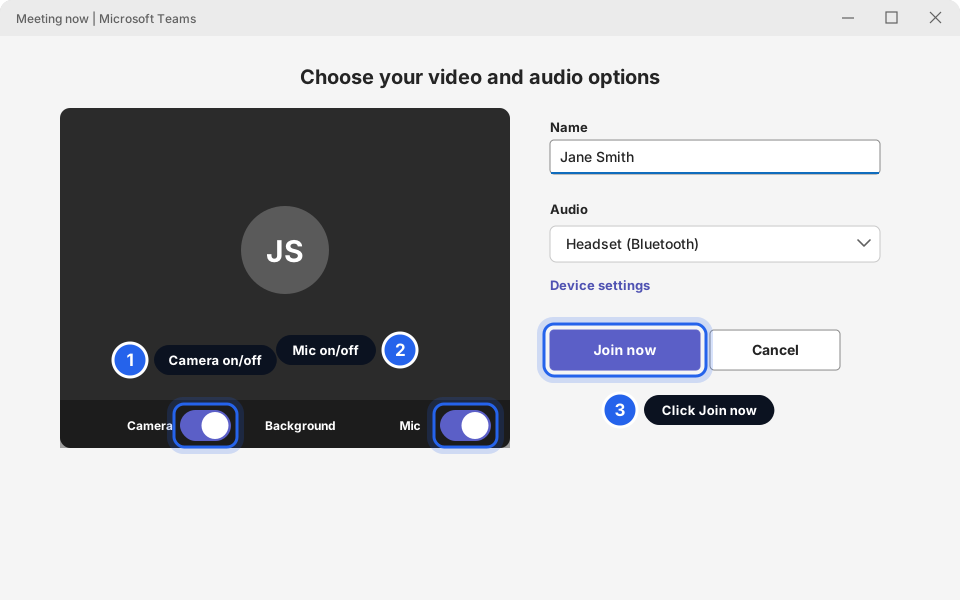
Check the switches, then click Join now.Click picture to enlarge -
Choose the right speaker and microphone
Click the audio line (it shows your current device, for example Headset) or Device settings. Choose the Speaker, Microphone and Camera you want. If you wear a headset, pick the headset for both speaker and microphone. If not, pick the laptop's own speaker and microphone.
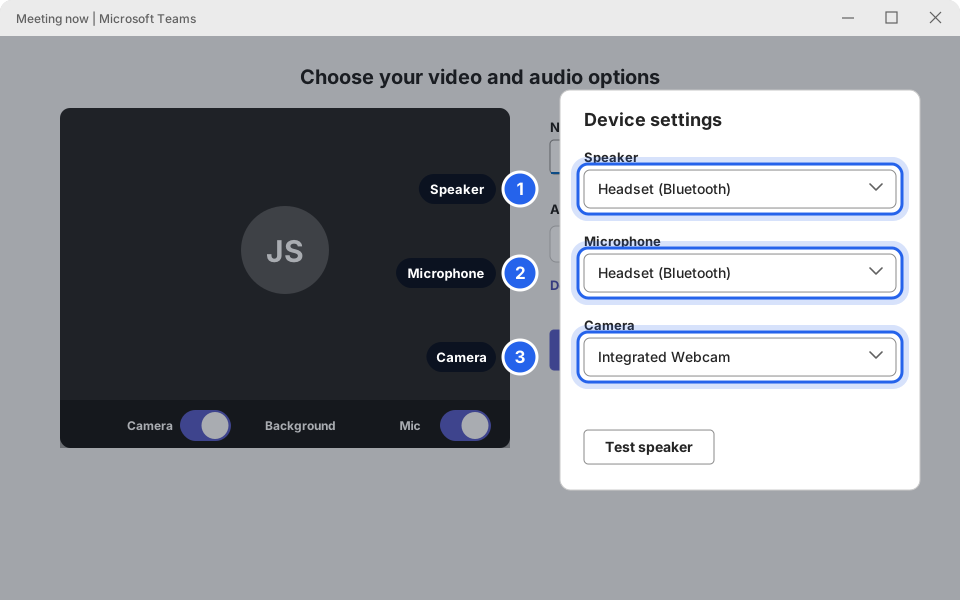
Pick your headset or laptop devices.Click picture to enlarge -
Click Join now
You are in. If the host uses a waiting room (a lobby), you will see Someone in the meeting should let you in soon. Wait and don't close the window.
During the meeting
The meeting controls are in a bar at the top of the meeting window (in older versions they were at the bottom). Hover your mouse over any button to see its name.
-
Know the main buttons
Mic mutes and unmutes you. Camera turns your video on and off. Share shows your screen. Raise raises your hand (it may be under React). Chat opens the message panel and People shows who is in the meeting. Leave (the red button) takes you out of the meeting.
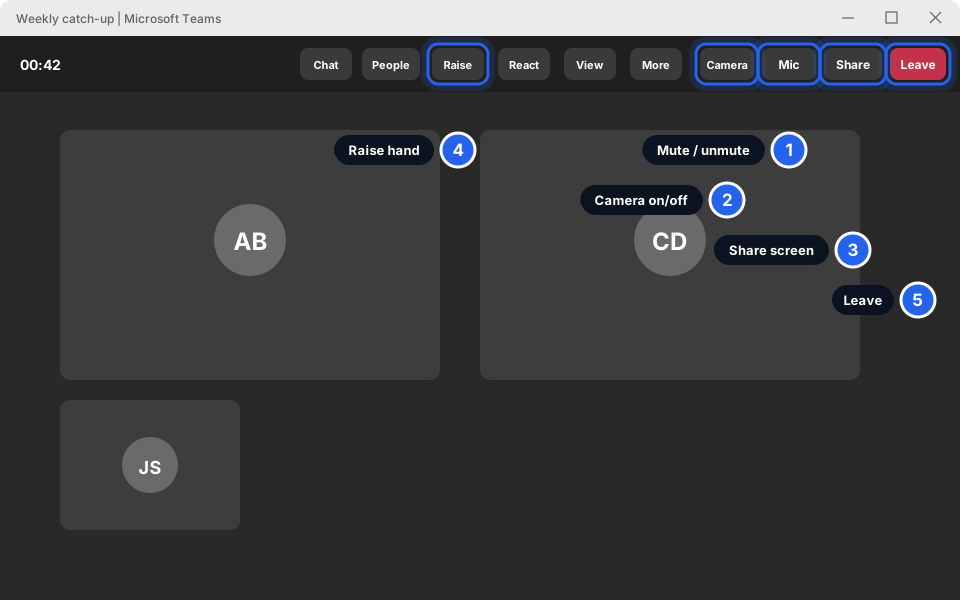
The main buttons are in the bar along the top.Click picture to enlarge -
Mute when you are not talking
Click Mic so it shows a line through it. Click again to speak. You can also press Ctrl + Shift + M on the keyboard. Muting stops background noise and echo for everyone.
-
Share your screen
Click Share. Choose Screen to show everything, or pick one window to show only that. Click Stop sharing when you are done. Close anything private (like email) before you share your whole screen.
-
Leave when the meeting is over
Click the red Leave button. Leaving does not end the meeting for others.
Fix sound or camera problems
Find the problem that matches yours. The fixes go from quickest to slowest.
Nobody can hear me
-
Look at the Mic button
If it has a line through it, you are muted. Click Mic once. A muted headset may also have its own mute button or switch on the cable. Check that too.
-
Pick the right microphone
In the meeting, click the small arrow next to Mic (or More / More actions, then Settings, then Devices; the names vary slightly by version). Under Microphone, choose your headset or laptop microphone. Speak: the level bar should move.
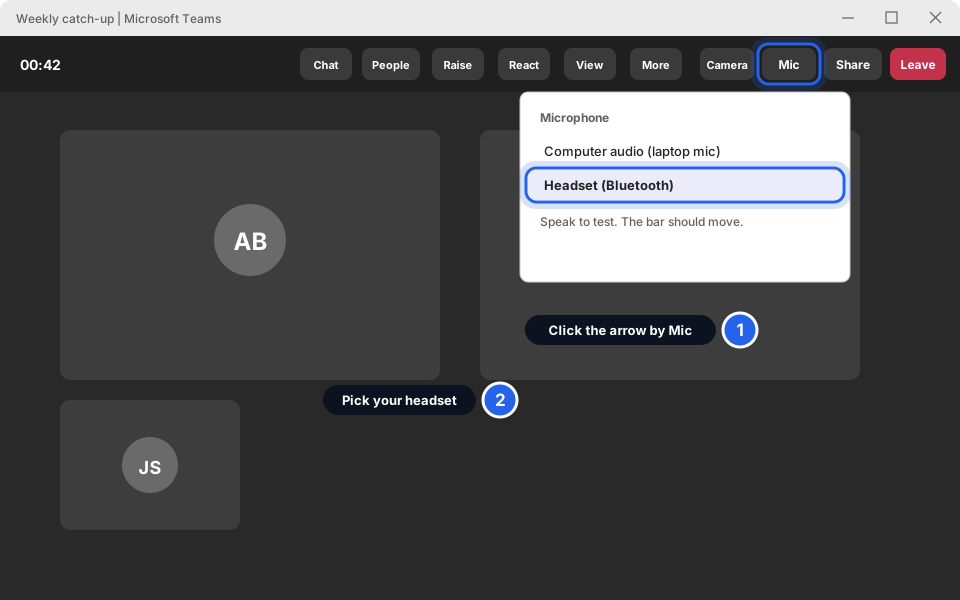
Choose the microphone that matches the one you are talking into.Click picture to enlarge -
Check Windows lets Teams use the microphone
Press the Windows key, type Microphone privacy settings and open it. (Or go to Settings > Privacy & security > Microphone.) Make sure Microphone access and Let apps access your microphone are On, and that Microsoft Teams in the list is On. If you use Teams in a browser, also switch on Let desktop apps access your microphone further down.
Teams in a browser? The browser needs permission too. Click the padlock beside the web address and set Microphone to Allow, then reload the page.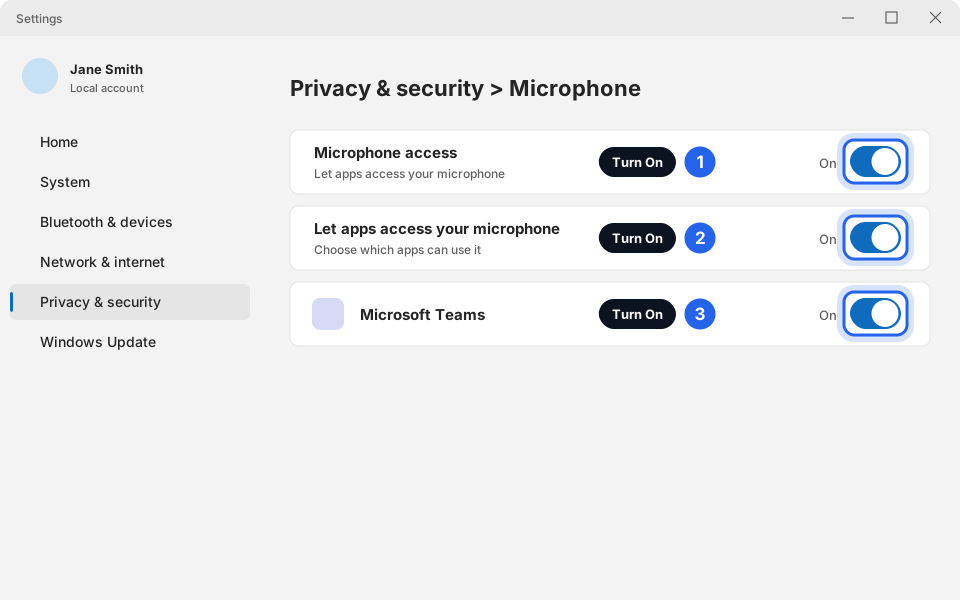
All three switches should read On.Click picture to enlarge -
Leave and rejoin
Click Leave, then join again from your calendar. This resets the sound connection and fixes many problems.
I can't hear anyone
-
Turn up the volume
Click the speaker icon at the bottom-right of the screen (next to the clock). Drag the slider up and make sure it is not muted. Also check the volume dial on your headset or the laptop's volume keys.
-
Pick the right speaker
In the meeting, click More (it may say More actions), then Settings, then Devices. Under Speaker, choose your headset or laptop speakers, then click Test speaker to hear a sound.
Choose the speaker you are listening on.Click picture to enlarge -
Bluetooth headset connected?
Click the Wi-Fi/speaker icons at the bottom-right of the screen, open the sound menu and make sure your headset is chosen. If it will not connect, turn the headset off and on, then try again.
-
Make sure the host can be heard
If you can't hear one person, the problem is theirs (they may be muted). If you can't hear anyone, the problem is on your PC.
My camera is black or not working
-
Check the camera is switched on in Teams
Click the Camera button so it is on. In Device settings, make sure the right camera is chosen.
Choose the camera.Click picture to enlarge -
Open the privacy shutter and check the keyboard
Many laptops have a small sliding cover over the camera, or a key with a camera picture (often on the top row, F8 or F10 with the camera symbol). Slide the cover open or press the key.
-
Check Windows lets Teams use the camera
Go to Settings > Privacy & security > Camera. Make sure Camera access, Let apps access your camera and Microsoft Teams are all On. If you use Teams in a browser, also switch on Let desktop apps access your camera further down.
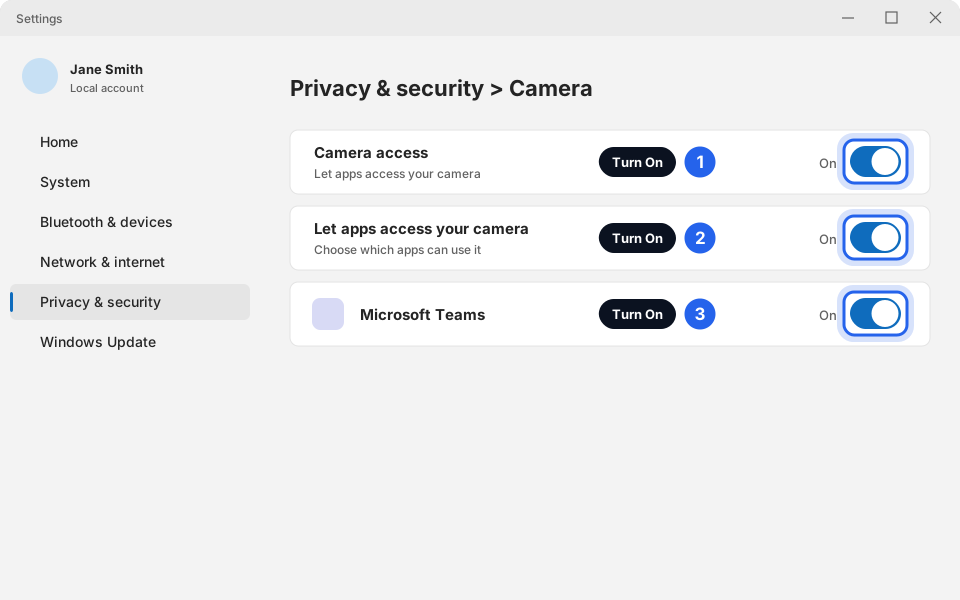
All three switches should read On.Click picture to enlarge -
Close other apps that use the camera
Only one app can use the camera at a time. Close other video apps, other browser tabs with a meeting open, and any other Teams meeting window. Then try again.
-
Restart the computer
If the picture is still black, restart the PC (see Restart your computer properly) and try again. Still black? It may be a faulty camera: message us.
There is an echo or feedback
-
Use a headset
Echo happens when your microphone picks up the sound from your speakers. A headset (or earbuds) stops it completely.
-
Mute when you are not talking
If two people sit in the same room each on their own laptop, only one should have the speaker and microphone on. Ask the other to mute and turn their speaker down or off.
-
Move away from the other person's laptop
Two devices in one room cause a squealing echo. Sit in different rooms, or use one device for sound.
Test your sound and camera first
If you have an important meeting, test beforehand. Teams can play your voice back to you. This works in the Teams app, and the menu names may vary slightly between versions.
-
Open Teams settings
Click the three dots (...) beside your picture at the top-right of Teams, then click Settings.
-
Click Devices, then Make a test call
Click Devices in the list on the left. Pick your speaker and microphone, then click Make a test call. A voice asks you to speak, records you, and plays it back. If you hear yourself, sound works.
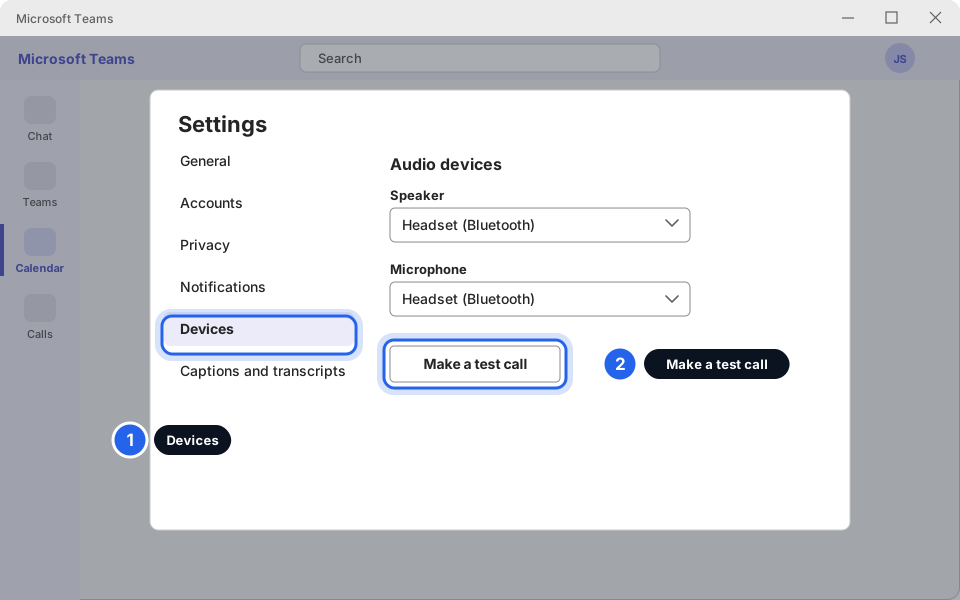
Click Devices, then Make a test call.Click picture to enlarge -
Check your camera picture
On the same Devices page, scroll to Camera. You should see yourself. If you don't, follow the camera fix above.
You are ready for your meeting
You can join, you can be heard and you can hear others. Join a few minutes early next time to be safe.
Still not working?
I clicked the link and nothing happened
Your browser may be blocking the pop-up. Look for a small box asking Open Microsoft Teams? and click Open. If nothing happens, go back to the invite and choose Continue on this browser.
It says the meeting hasn't started or I'm waiting in the lobby
You joined before the host. Stay on the screen. The host (or someone already in) needs to let you in. If nobody comes after a few minutes, contact the organiser.
The video is choppy or the sound cuts out
That's usually the internet. Close other things using the internet, move nearer the Wi-Fi, or turn your camera off to save bandwidth. See Internet or Wi-Fi not working?
Teams says I don't have permission to join
Some meetings only let people from a certain company in. Ask the organiser to check the meeting settings, or to let you in from the lobby.
Everything is checked but I still can't be heard
Try a different device: your phone's Teams app, or the same meeting in a browser. Then message us and tell us what you tried and what the Teams device settings show.