1. Tell us which computer
On computers managed by Skytech, we can usually connect without you doing anything. We only need to know which computer to connect to. Send us one of these on WhatsApp or by email.
-
Look for a sticker with the computer's name
Many Skytech computers have a small white sticker on the screen frame, the side or the back of the computer. It shows a short name such as FRONTDESK-PC1. Read it out, or take a photo of it.
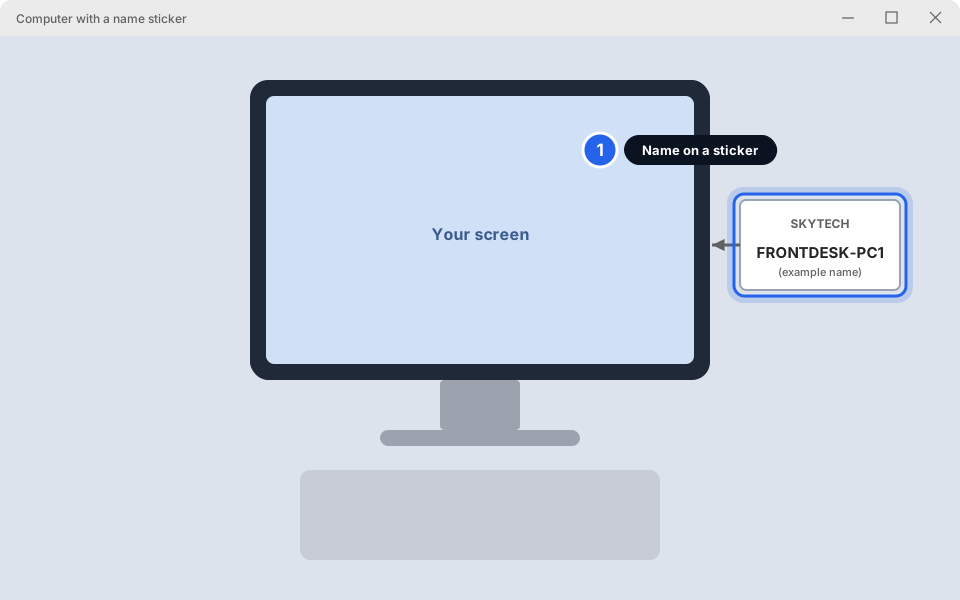
1 The name is on the sticker.Click picture to enlarge -
No sticker? Open Settings › System › About
Click the Start button, then Settings. Click System on the left, then scroll down and click About.
At the top of the page you'll see the computer's name under Device name. Click Copy and paste it into your message to us.
On a Mac: click the Apple menu (top left), then System Settings › General › About. The name is at the top.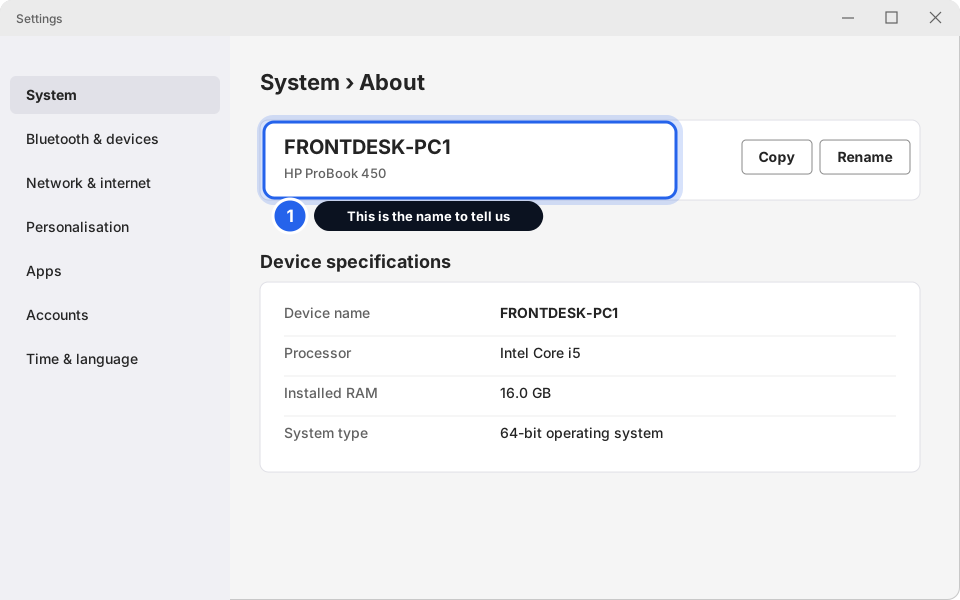
1 The device name.Click picture to enlarge -
Send us the name and leave the computer switched on
Tell us the name and what's wrong. Leave the computer on and signed in. We'll connect and tell you when we're in. On most Skytech computers you won't need to do anything else.
2. If we ask for your RustDesk ID
Skytech computers use a program called RustDesk for remote support. Occasionally we may ask you for the ID shown on the computer, or ask you to click Accept. This is how.
-
Open RustDesk from the Start menu
Click the Start button (or press the Windows key). Type rustdesk. Click RustDesk in the results.
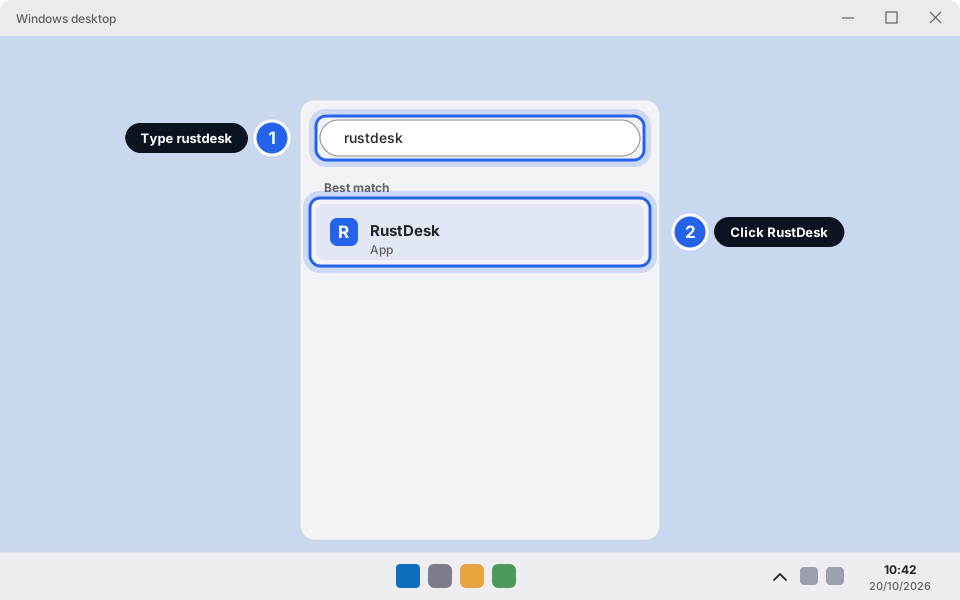
1 Type rustdesk · 2 Click RustDeskClick picture to enlarge -
Or find it near the clock
RustDesk may already be running. Look at the bottom-right of the screen, next to the clock. Click the small ^ arrow to show hidden icons, then click the RustDesk icon (a blue square with an R).
If you can't find the icon, don't worry. Use the Start menu method in the step above.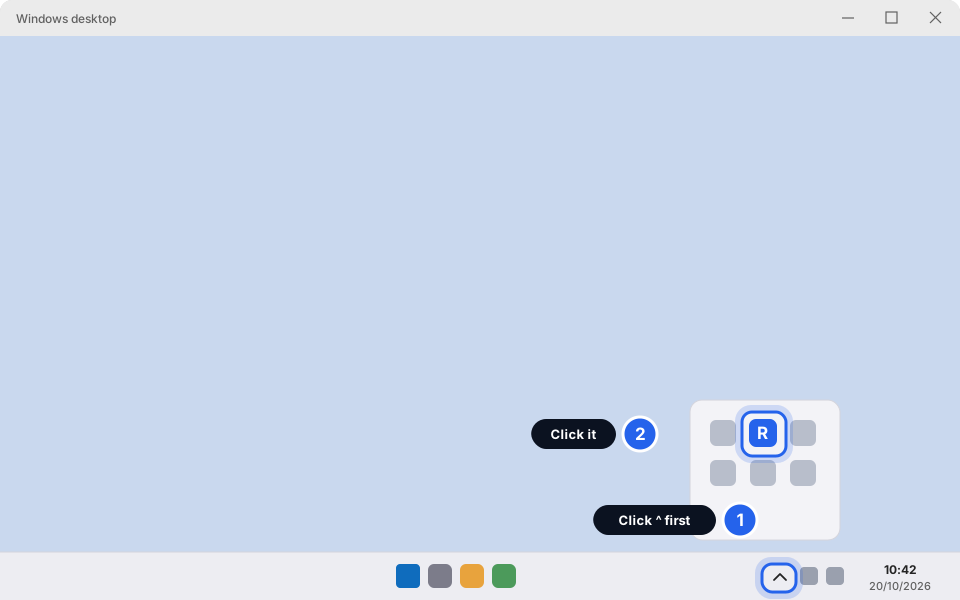
1 Click ^ · 2 Click the RustDesk iconClick picture to enlarge -
Read out the number under Your Desktop
The RustDesk window opens. On the left, under Your Desktop, find the box marked ID. It's a number made of groups of digits. Read it to us, or take a photo or screenshot and send it.
You don't need to type anything into the RustDesk window.
The number in the picture is only an example. Always use the one on your screen. Only give it to Skytech, in a conversation you started.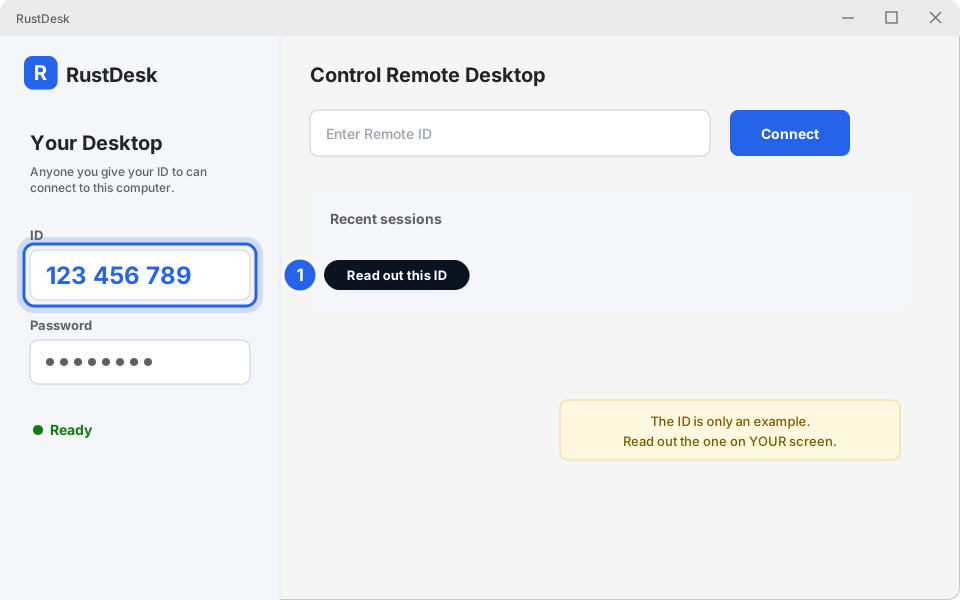
1 This is your ID.Click picture to enlarge -
When the pop-up appears, click Accept
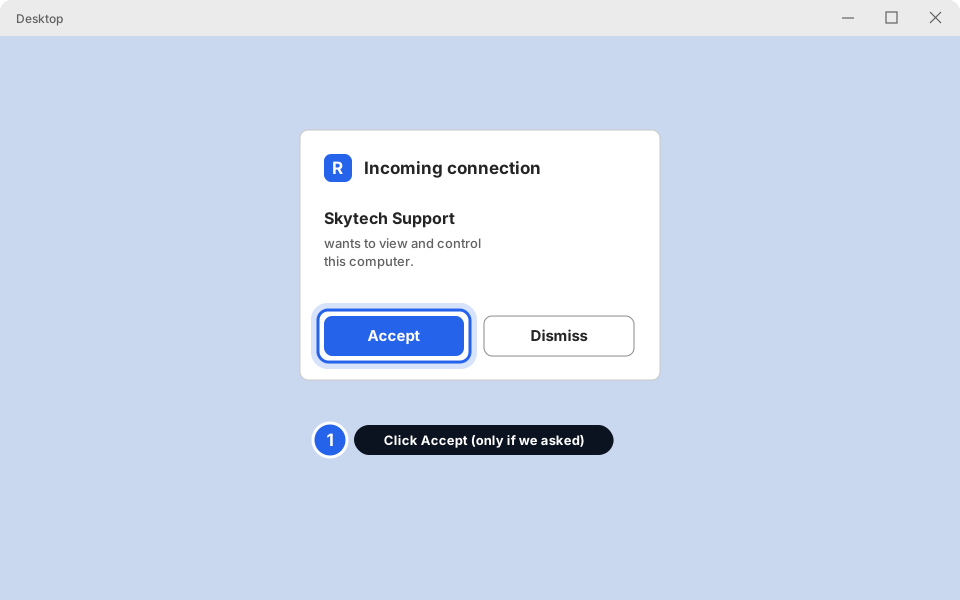
When we connect, a small box may pop up saying someone wants to connect. If you're expecting us (you've just messaged us), click Accept.
Not expecting it? Click Dismiss and message us.
1 Click Accept.Click picture to enlarge -
See that we're connected, and end the session any time
While we're connected you may see our mouse moving by itself, and a connection panel or bar on your screen. To stop at any time, click Disconnect in that panel. If you can't see it, open RustDesk from the clock area (step 2) and end the connection from there.
We'll also tell you when we've finished, and we'll disconnect ourselves.
The panel looks a little different on different versions. It may be called Connection in progress or just show a small bar. Look for a button named Disconnect, Close or an X.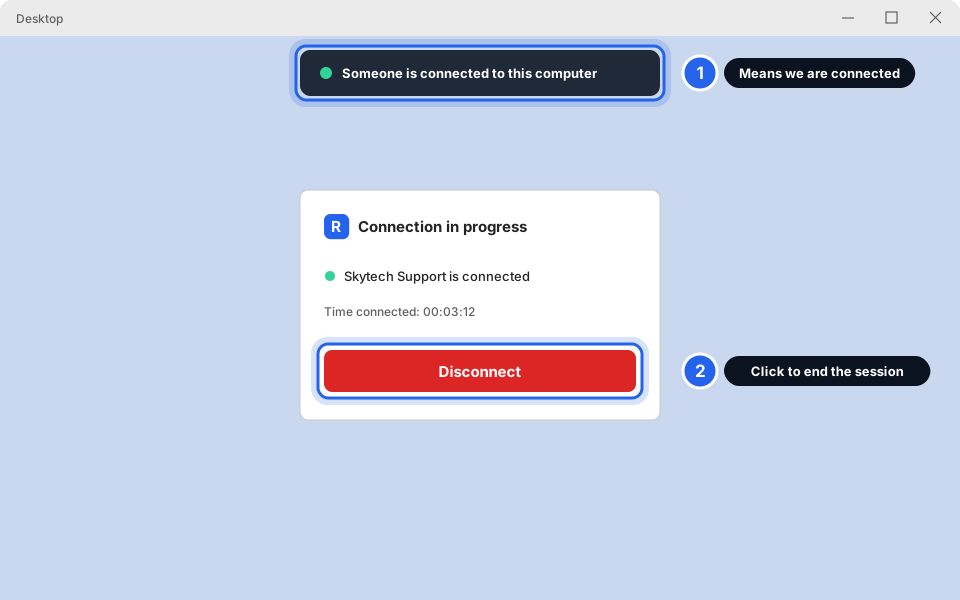
1 Shows we're connected · 2 Disconnect ends itClick picture to enlarge
That's all there is to it
Leave the computer on until we tell you we've finished. If anything on screen looks wrong, message us.
On a Mac
Macs are stricter. The first time we connect, macOS may ask you to allow RustDesk to see and control your screen. This is normal, and you only do it once.
-
Open System Settings › Privacy & Security
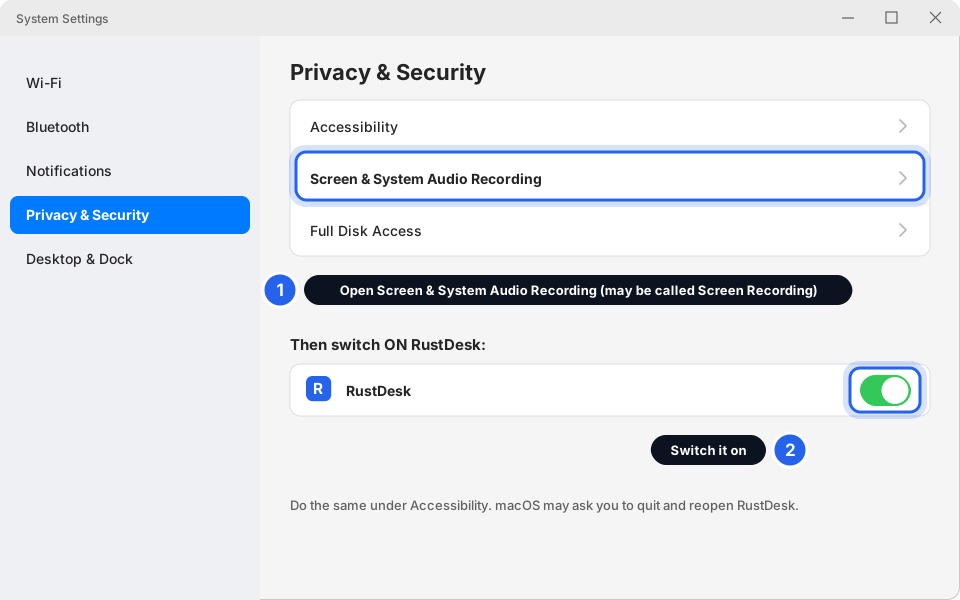
Click the Apple menu (top left of the screen), then System Settings. Click Privacy & Security on the left.
Click Screen & System Audio Recording (it may be called Screen Recording on your Mac). Switch RustDesk on. Then go back and do the same under Accessibility. If we still can't use your keyboard and mouse afterwards, we may also ask you to switch RustDesk on under Input Monitoring.
macOS may tell you to Quit & Reopen RustDesk. Click that button.
1 Open the setting · 2 Switch RustDesk onClick picture to enlarge
Computers Skytech doesn't manage
If your computer doesn't have RustDesk yet, we can still help. We'll send you a download link by WhatsApp or email from Skytech. Open it, install what we sent, and follow the same steps as above.
Stay safe: phone and pop-up scams
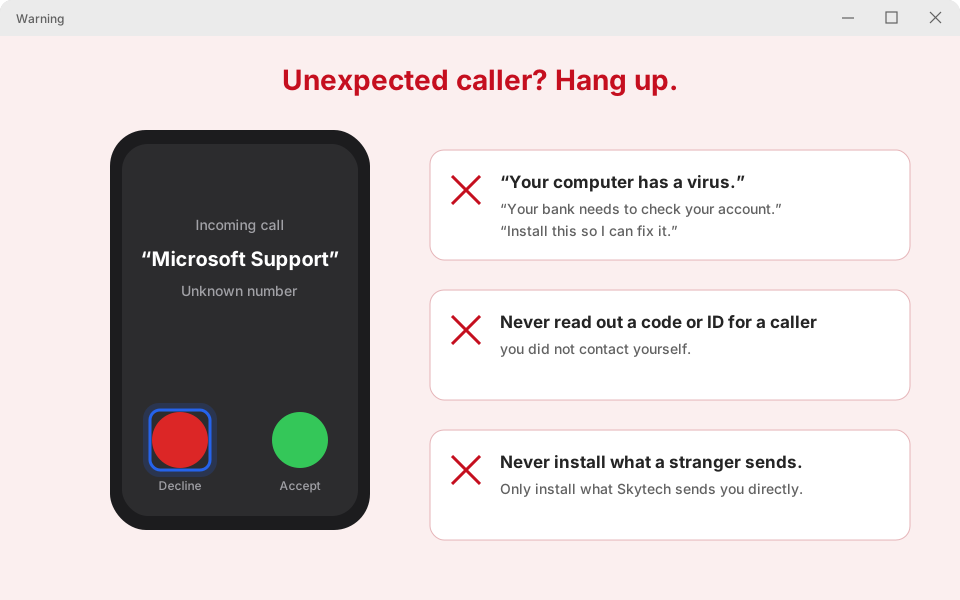
Criminals phone people pretending to be "Microsoft", "your bank" or "tech support", and ask them to install remote software. Once connected they can steal money and passwords.
Still not working?
I can't find RustDesk on my computer
It may not be installed on that computer yet. Message us with the computer's name (see step 1) and we'll arrange it. Don't download RustDesk from a random website. Wait for the link from us.
The pop-up never appeared
On most Skytech computers there's no pop-up, because we connect without bothering you. If we asked you to accept and nothing appears, check that RustDesk shows Ready in its window. If it says Not ready or a network error, check the internet is working: Internet or Wi-Fi not working.
I clicked Accept by mistake. How do I stop it?
Click Disconnect in the connection panel. If you can't see it, switch off the Wi-Fi or unplug the network cable, then message us.
Someone rang me claiming to be from Microsoft or Skytech and wants to connect
Hang up. Don't give them an ID and don't click Accept. Skytech doesn't phone people out of the blue to take over their computer. If you're unsure, message us on WhatsApp and we'll confirm.
My computer is frozen or won't switch on
Remote support only works when the computer is on and online. Send us a photo of the screen instead: Take a screenshot to send us (a phone photo is fine).