Why "Shut down" is not enough
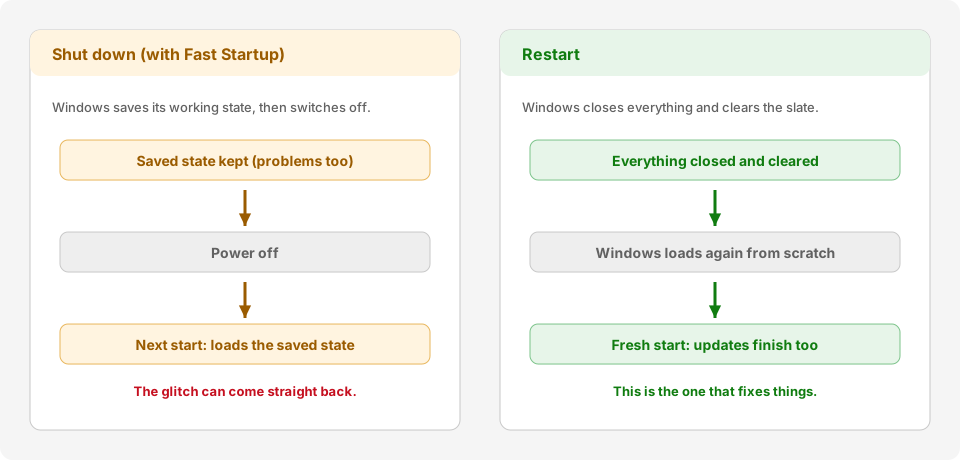
Windows has a feature called Fast Startup. When you click Shut down, Windows saves part of itself to the disk so that it starts faster next time. That means slow, frozen or odd behaviour can come straight back after a shut down.
Restart is different. It closes everything and starts Windows again from scratch. It also finishes any waiting updates. If something is wrong, Restart is what fixes it.
How to restart
-
Save your work first
Save any open documents and spreadsheets, and send any emails you are writing. A restart closes everything.
Check for a document or spreadsheet with a dot or star in its name. It means it is not saved yet. -
Click the Start button
It is the Windows logo in the middle of the bottom bar (taskbar).
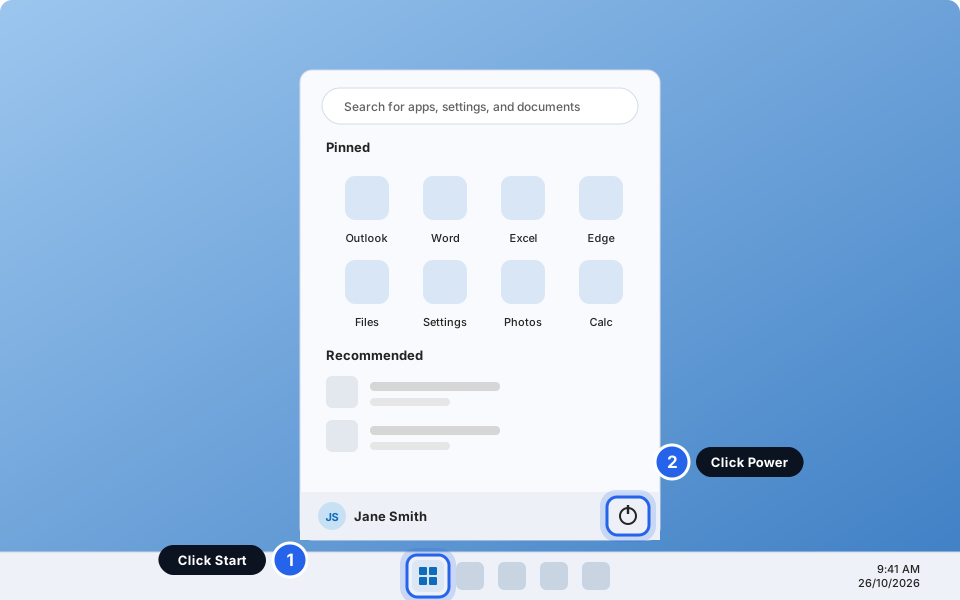
Click Start, then the Power button.Click picture to enlarge -
Click the Power button
It is the small circle with a line at the bottom-right of the Start menu.
-
Click Restart
Choose Restart, not Shut down or Sleep. The screen goes dark and the computer starts again. Wait until you see the sign-in screen, then sign in.
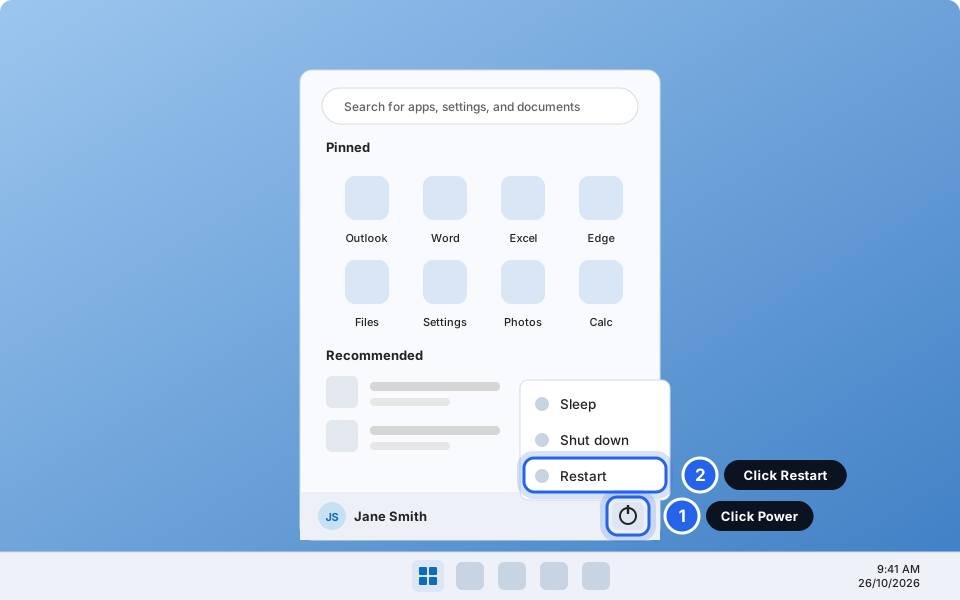
Click Restart.Click picture to enlarge
How long has your computer been on?
If it has been more than a week, it is time to restart. Here is how to check.
-
Press Ctrl + Shift + Esc together
Hold all three keys at the same time. A window called Task Manager opens.
-
Click Performance, then CPU
Performance is on the left side. It may show only a small picture of a chart. Then click CPU at the top of the list.
-
Look at Up time under the graph
The numbers go days : hours : minutes : seconds. In the picture, 9:04:21:15 means 9 days, 4 hours, 21 minutes and 15 seconds. If the first number is 7 or more, restart now.
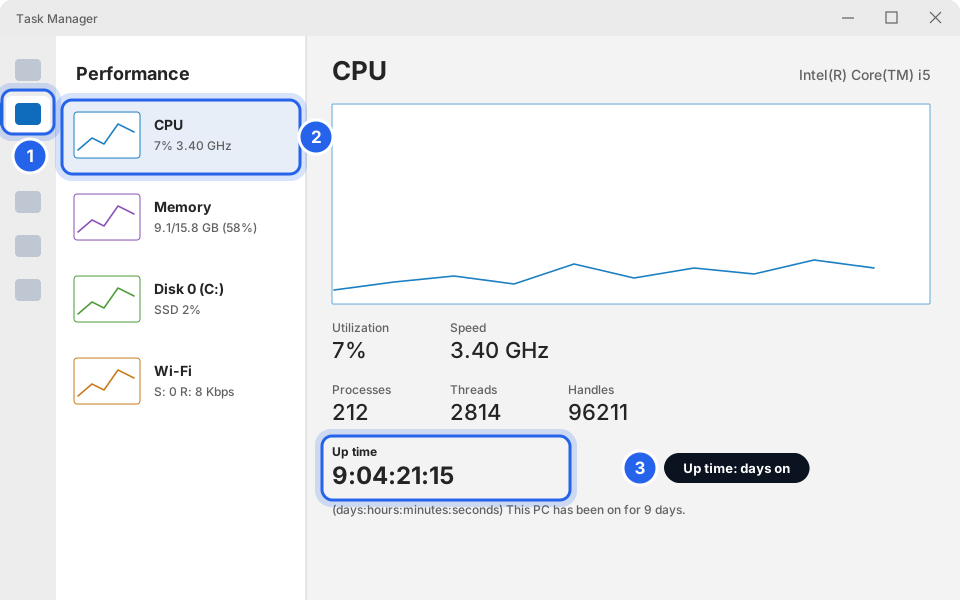
Performance, CPU, then Up time.Click picture to enlarge
When Windows asks you to restart
Sometimes Windows installs updates and then waits for a restart. You may see a message, a dot on the Power button, or an orange dot on the Windows Update icon. Do not ignore it. Pick a quiet time and restart.
-
Click Start, then Power
If an update is waiting, the Power menu shows extra choices.
-
Click Update and restart
Do not switch the computer off while it says Working on updates. It can take 5 to 20 minutes. Keep the laptop plugged in.
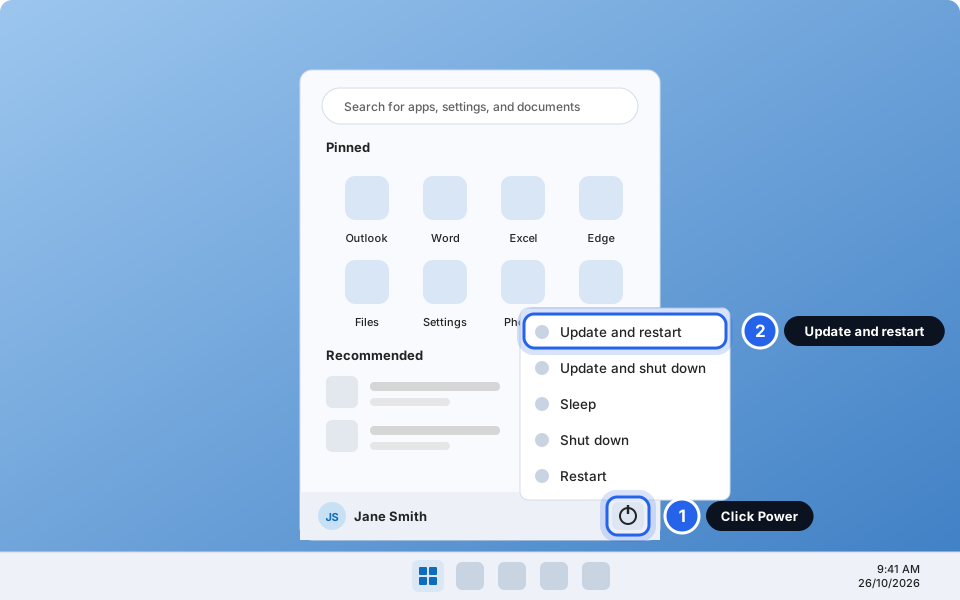
Click Update and restart.Click picture to enlarge
A few simple rules
Do not hold the power button to restart
Holding the power button cuts the power and can damage files. Only do it if the computer is completely frozen: the mouse does not move, the keyboard does nothing and nothing changes for 5 minutes. Then hold the button for about 10 seconds until the screen goes off, wait 10 seconds, and press it once to turn the computer on. Tell us if this happens often.
Laptops: closing the lid is not a restart
Closing the lid usually puts the laptop to sleep. That keeps everything exactly as it was, including any problems. Use Start, Power, Restart at least once a week.
Restart before you call us
Slow computer, printer not found, Wi-Fi gone, Outlook or Teams acting strangely: restart first, then try again. It fixes a lot, and it helps us if it does not.
Fresh start done
Open Task Manager again and the Up time should be under a minute. Put a weekly reminder in your calendar.
Still not working?
Restart is taking forever
If it says Working on updates, wait, even if it takes 20 minutes. Do not switch it off. If the screen has not changed after 30 minutes, message us.
It keeps asking me to restart
Restart (not Shut down) and let it finish all the updates. If the message comes back the next day, tell us.
My programs are not back after the restart
That is normal. Open them again. If a file is missing, look in Word or Excel under File then Open then Recent for a recovered copy.
The computer will not turn on after a restart
Check that the power cable is plugged in and the light is on. After a power cut see After a power cut: what to restart, and in what order. Otherwise message us.
I do not see Update and restart in the Power menu
That means no update is waiting. Use Restart as normal.