A file on your computer: Recycle Bin
When you delete a file from your computer it usually goes to the Recycle Bin first. It stays there until the bin is emptied or Windows clears it to make space.
-
Double-click Recycle Bin on your desktop
It is the little bin icon, usually at the top left of your desktop. If you can't see it, click Start, type Recycle Bin and press Enter.
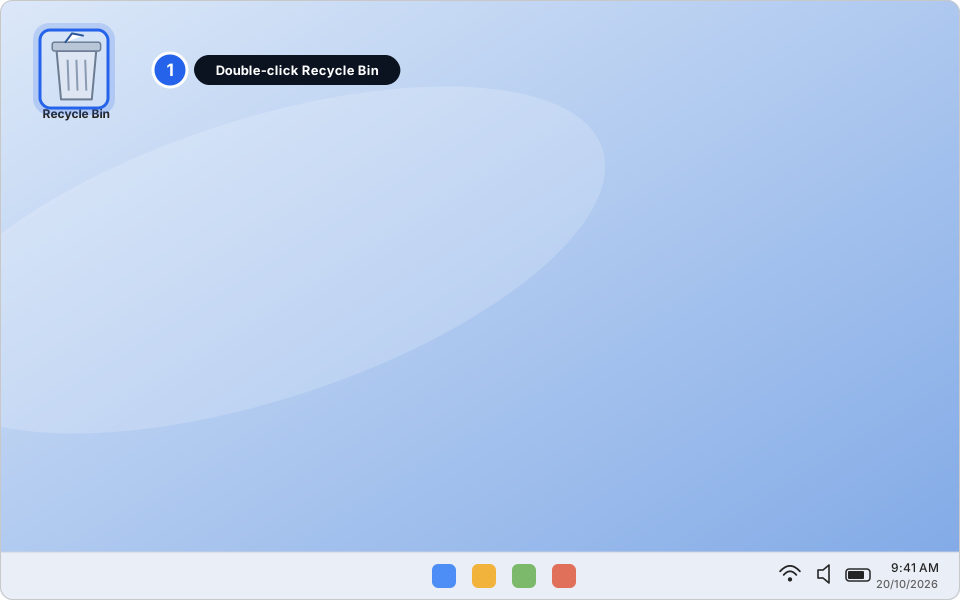
1 Double-click Recycle BinClick picture to enlarge -
Click the file, then click Restore the selected items
Find your file in the list. Click it once so it turns blue. Then click Restore the selected items at the top. The file goes back to the place it was deleted from.
Not sure which file? The Original Location and Date Deleted columns help. You can also type the file name into the search box at the top right.
Files deleted from a USB stick, a shared network drive, or with Shift + Delete do not go to the Recycle Bin. Don't keep saving to that drive, and message us. We may be able to help.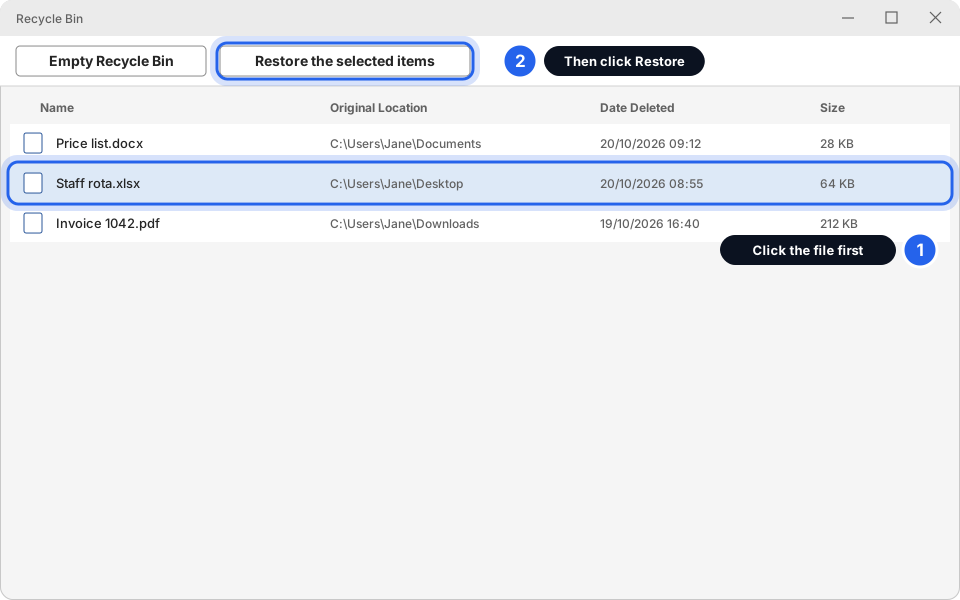
1 Click the file · 2 RestoreClick picture to enlarge
A file in OneDrive
If your files are in OneDrive (see Back up your files with OneDrive), OneDrive has its own Recycle bin. For work accounts, deleted files are usually kept for 93 days, unless your company has changed this.
-
Go to onedrive.com, sign in and click Recycle bin
Sign in with your work email and password. Click Recycle bin in the list on the left.
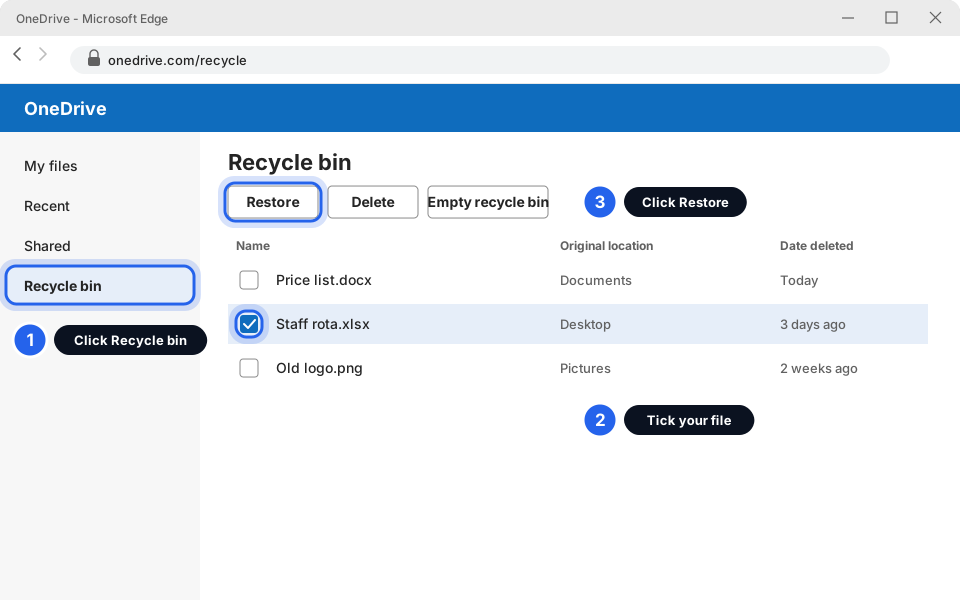
1 Recycle bin · 2 Tick your file · 3 RestoreClick picture to enlarge -
Tick your file, then click Restore
Click the small circle or box to the left of the file name so it shows a tick. Then click Restore at the top. The file goes back where it was.
-
Lost lots of files at once? Use Restore OneDrive
Click the gear icon at the top right of the OneDrive website. On a work account click Settings, then Restore OneDrive (on a personal Microsoft 365 account it is Settings, Options, Restore your OneDrive). You can pick an earlier day and undo changes made since. Microsoft keeps about 30 days for this.
The option may be missing or look different on some work accounts. If you can't find it, message us. Don't try this for a single file, because it undoes everything from that date on.
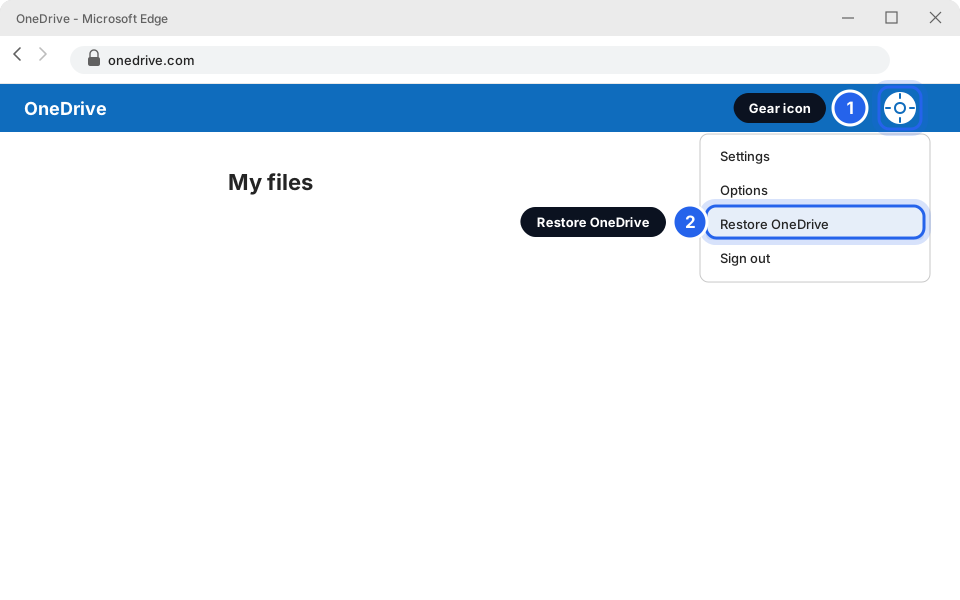
1 Gear icon · 2 Restore OneDriveClick picture to enlarge
A file you saved over
Saved over the good version, or someone changed the numbers? If the file is in OneDrive, it keeps older versions.
-
Right-click the file and choose Version history
In File Explorer, open your OneDrive folder. Right-click the file. Click OneDrive if you see it, then Version history. On Windows 11 it may open in a window or in your web browser.
Already have the file open in Word or Excel? Click File, then Info, then Version History.
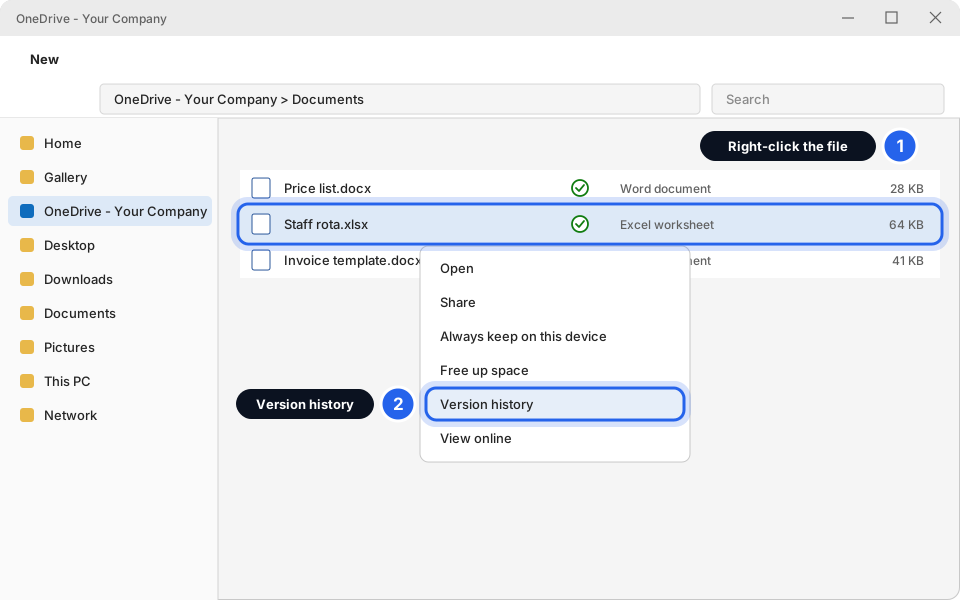
1 Right-click · 2 Version historyClick picture to enlarge -
Pick the older version and click Restore
The list shows the date, time and who saved each version. Click the one you want to open and check it. If it is the right one, click Restore.
Files that are not in OneDrive usually have no older versions. Don't go looking in other places. Message us and say where the file was saved.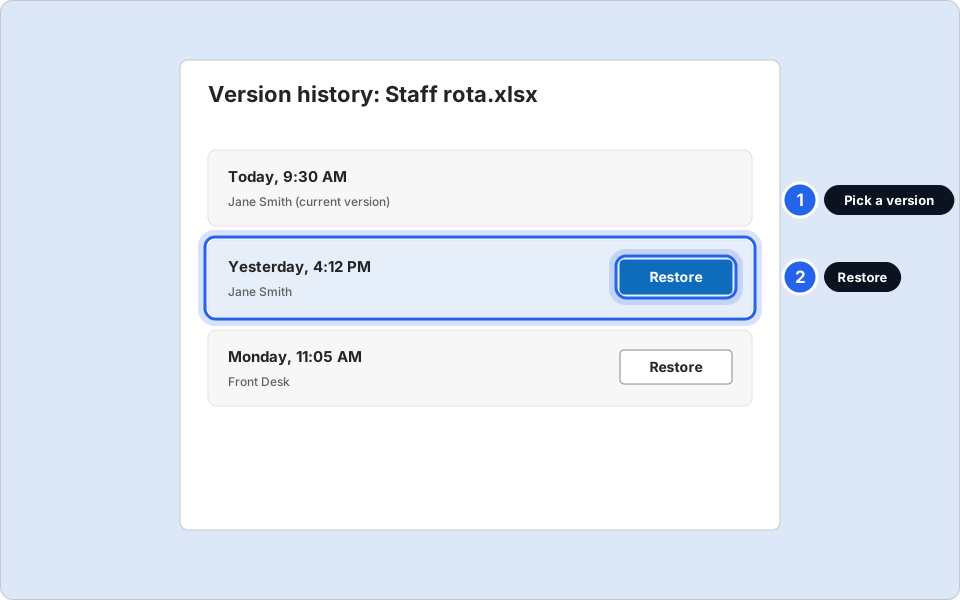
1 Pick a version · 2 RestoreClick picture to enlarge
An email in Outlook
Deleted email goes to Deleted Items first. After that, Microsoft 365 keeps it hidden for a short time, usually about 14 days and sometimes up to 30 days, depending on your company's settings. After that it cannot be recovered by you.
-
Open Deleted Items and look there first
In the folder list on the left, click Deleted Items. Find the email. Right-click it, then choose Move and Inbox (or drag it to Inbox).
Can't see the folder list? Click the small arrow next to your email address on the left to open it.
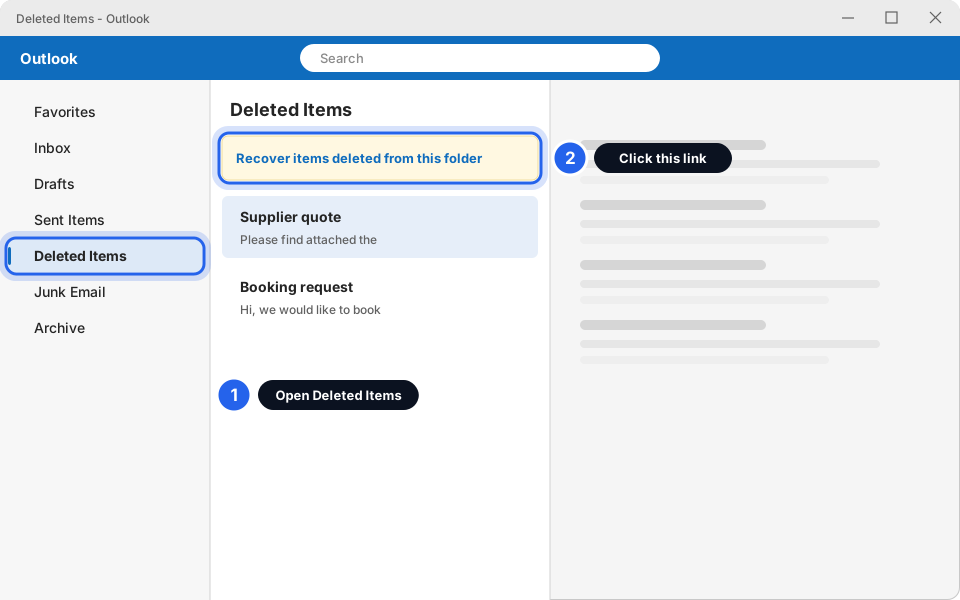
1 Deleted Items · 2 Recover linkClick picture to enlarge -
Not there? Click Recover items deleted from this folder
While Deleted Items is open, look at the top of the email list for a link called Recover items deleted from this folder. Click it.
Classic Outlook: click Deleted Items in the folder list, then the Home tab, then Recover Deleted Items From Server (in some versions it is on the Folder tab and may say Recover Deleted Items). You can also click the link at the top of the folder, which may say Recover items recently removed from this folder. Outlook on the web (outlook.office.com) has the same link.
-
Tick the email and click Restore Selected Items
A list of recoverable emails opens. Tick the ones you want and click Restore Selected Items and then OK (on the web it may just say Restore). They go back to Deleted Items. Then move them to your Inbox as in the first step.
Not in the list either? It may be past the time limit, or in a different folder. Try the Search box at the top of Outlook with All folders selected. If you still can't find it, message us quickly.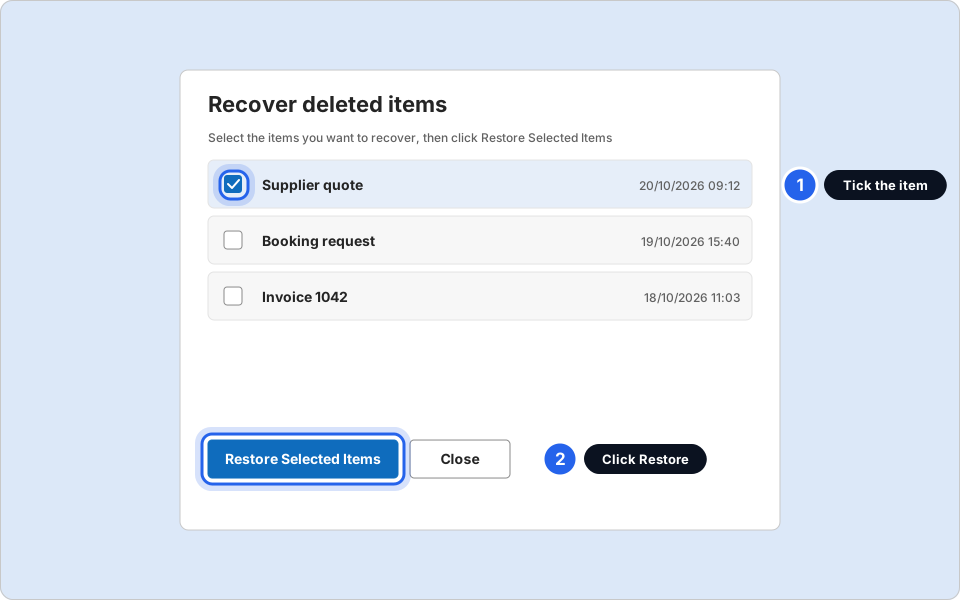
1 Tick the item · 2 RestoreClick picture to enlarge
An email on Skytech-hosted email
If your email is on webmail at webmail.yourcompany.com (not Microsoft 365), deleted email goes to Trash.
-
Open Trash, tick the email and click Move to Inbox
Sign in to webmail. Click Trash in the folder list. Tick the email and move it back to the Inbox. The button may be called Move or you may need to drag it. Labels differ slightly between webmail apps.
Not in Trash? Message us as soon as you can. Tell us the sender, the subject and the day it was deleted. We'll tell you whether it can be recovered. We can't promise it.
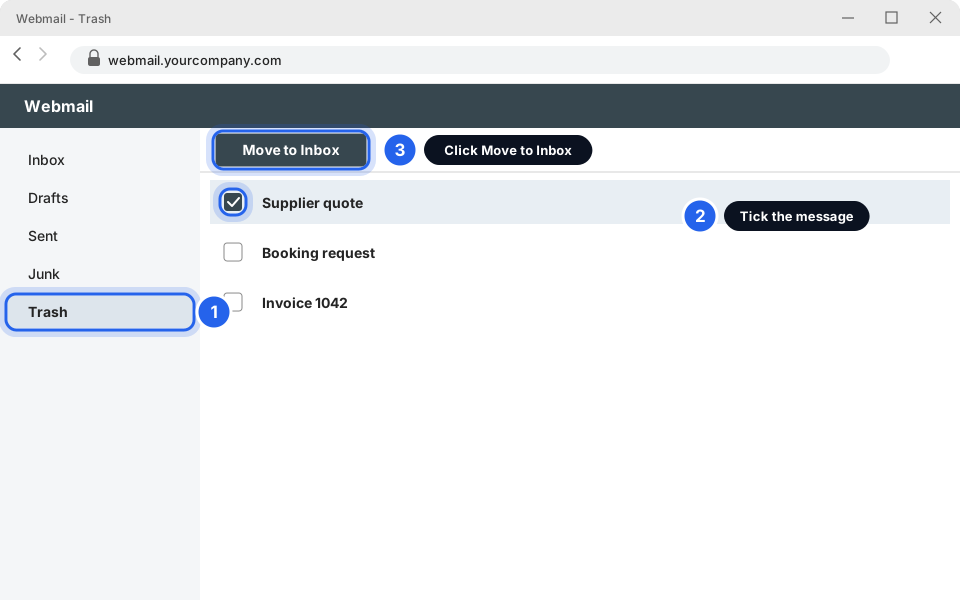
1 Trash · 2 Tick the message · 3 Move to InboxClick picture to enlarge
Found it?
Open the file or email and check it is the right one. Then keep it safe: turn on OneDrive backup so you have a second copy next time.
Still not working?
The Recycle Bin is empty, or the file isn't there
It may have been deleted from a USB stick or network drive, or the bin was emptied. If the file was in OneDrive, check the OneDrive Recycle bin above. Otherwise message us with the file name and where it was.
I emptied the Recycle Bin
The file is probably gone for good on your computer. Check OneDrive and its Recycle bin. If it was never in OneDrive, message us. Don't save new files on that drive in the meantime.
"Recover items deleted from this folder" is missing
It only shows while Deleted Items (or the folder the email was in) is open. Your email type may not support it, for example a hosted IMAP account. Try Trash in webmail, or message us.
It has been more than a month
Your company's settings decide how long things are kept. Message us. Sometimes an administrator can still help, but older items may be gone.
Someone else deleted a shared file
Files in a shared folder or team site are restored by the person who owns the folder or by us. Message us with the file name and the date.