1. See how full you are
Pick where you read your email.
Classic Outlook
-
Click File, then make sure Info is selected
The first tab, top-left. The page called Account Information shows a Mailbox Settings box (with a Tools button) and a coloured bar and a line such as "46.5 GB free of 49.5 GB". The fuller the bar, the closer you are to the limit.
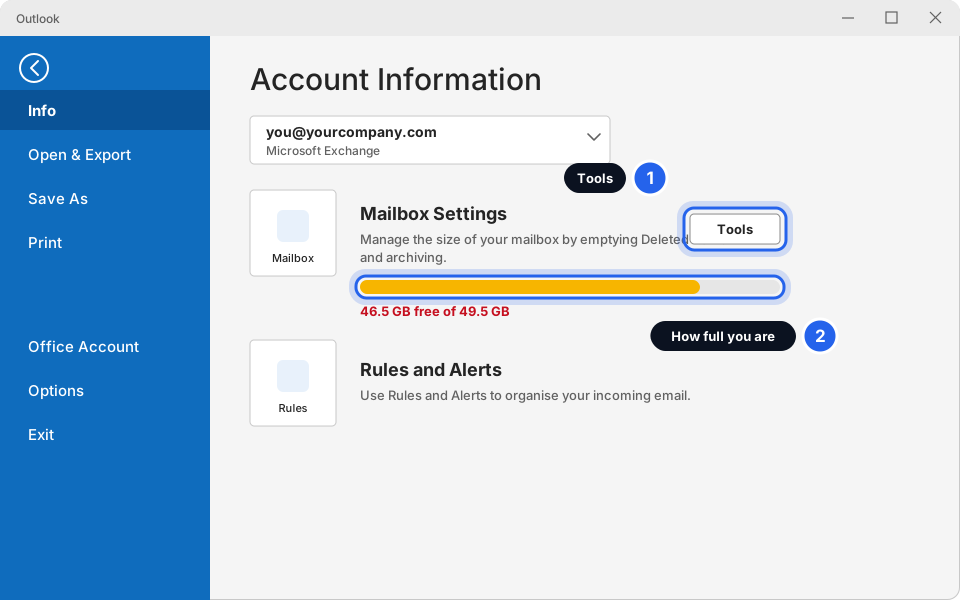
Find the Mailbox Settings box and look at the bar.Click picture to enlarge -
To see which folders are big, click Tools (in the Mailbox Settings box), then Mailbox Cleanup...
Then click View Mailbox Size.... You get a list of your folders with the size of each. Note which are the biggest (often Inbox, Sent Items and Deleted Items).
If you do not see a Tools button, look for Cleanup Tools or Mailbox Cleanup on the same File > Info page. The name changes a little between versions.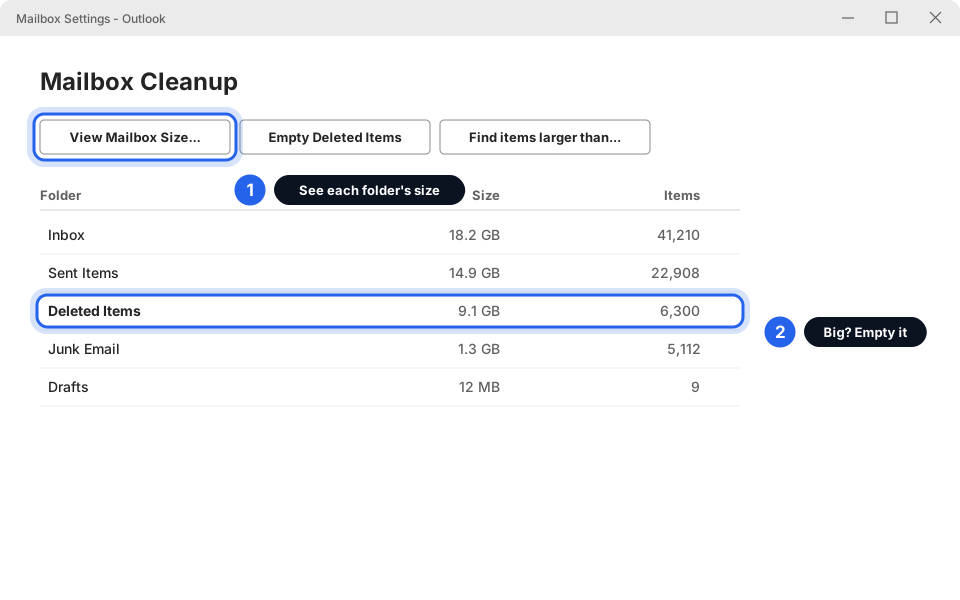
A list of folder sizes. Deleted Items is highlighted because it can be emptied.Click picture to enlarge
New Outlook
-
Click the Settings gear in the top-right corner
Then click Accounts on the left and choose Storage.
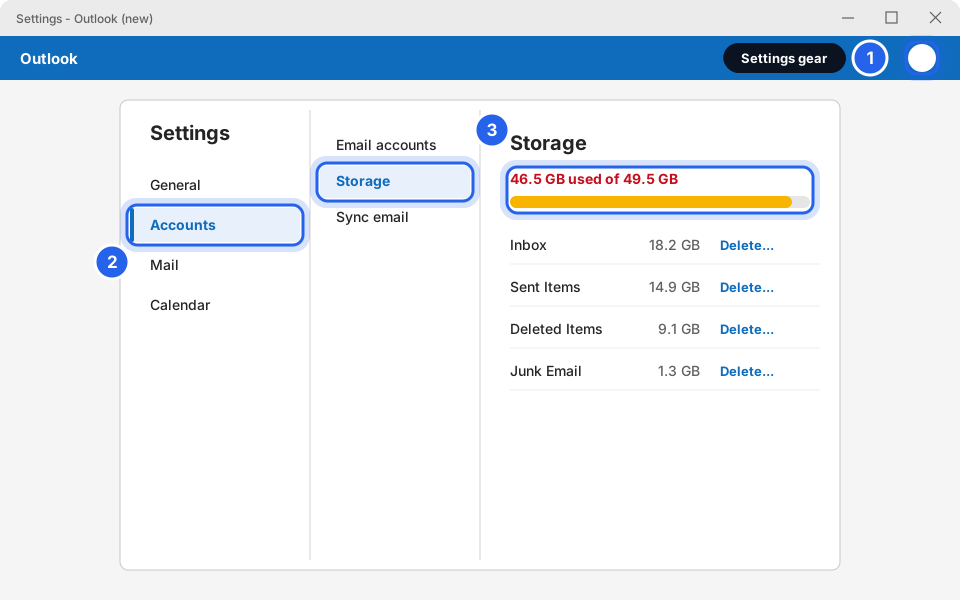
Settings, then Accounts, then Storage.Click picture to enlarge -
Read the bar and the list
You will see how much space you use and how big each folder is. Each folder has a Delete... link. Don't click it yet. Use the sections below, so you can choose what goes.
Outlook on the web (Microsoft 365)
-
Sign in at outlook.office.com
Click the Settings gear in the top-right corner. Click General, then Storage. In newer versions the path is Account, then Storage, so check there if you do not see it. A bar shows what you have used.
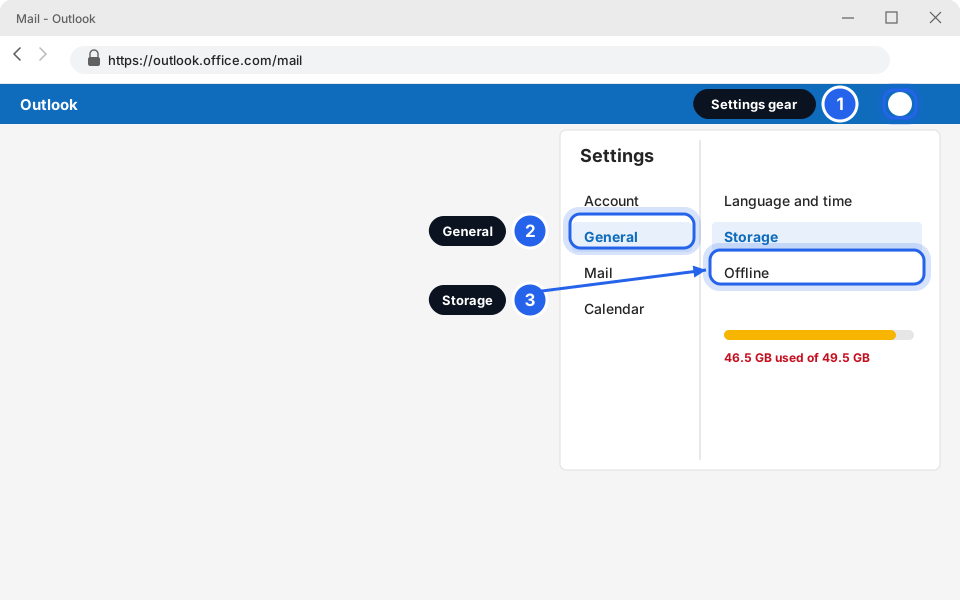
Settings gear, General (or Account), Storage.Click picture to enlarge
2. Empty Deleted Items and Junk
Deleted emails are not really gone. They sit in Deleted Items and still take up space. This is the quickest win.
-
Right-click Deleted Items in the folder list
The folder list is on the left. A small menu appears.
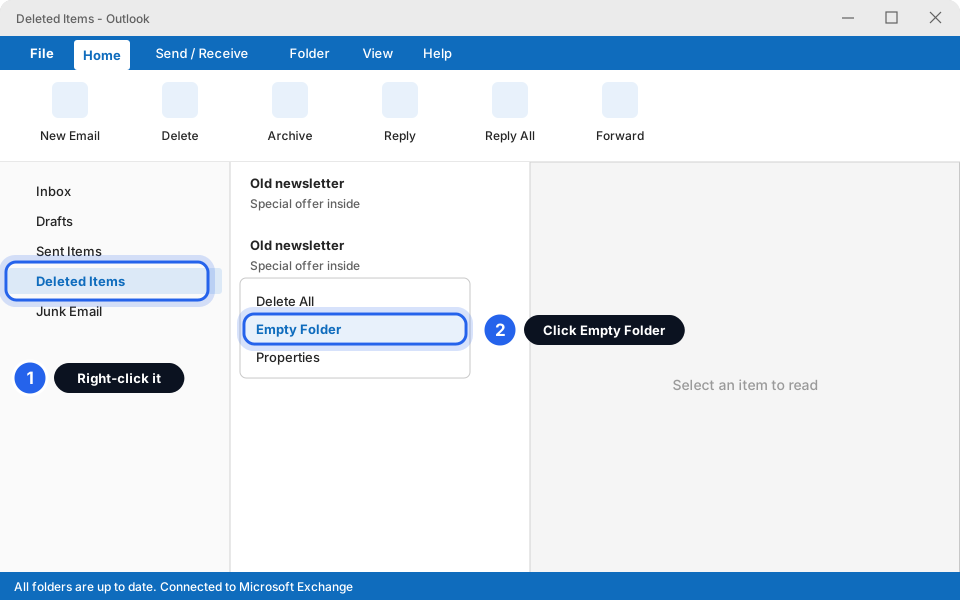
Right-click Deleted Items, then click Empty Folder.Click picture to enlarge -
Click Empty Folder
New Outlook calls it Empty folder. A box asks "Are you sure?". Look at the folder first and make sure there is nothing you need. Then click Yes (or Delete all).
Do this only when you are sure. Once you empty Deleted Items, you should assume those emails are gone for good. -
Do the same for Junk Email
Right-click Junk Email, then Empty Folder. Junk usually holds nothing you need.
3. Find the biggest emails
A handful of emails with big attachments usually take most of the space. Deal with those first, rather than hundreds of small ones.
Classic Outlook
-
Click in the search box at the top of your mail list
Click the box that says Search Current Mailbox. A new tab called Search appears at the top.
-
Click the Search tab, then Size
Choose Huge (1-5 MB) first, then Gigantic (> 5 MB). Outlook lists only emails that big.
Shortcut: type size:gigantic or size:huge in the search box and press Enter. To search every folder, pick All Mailboxes beside the box.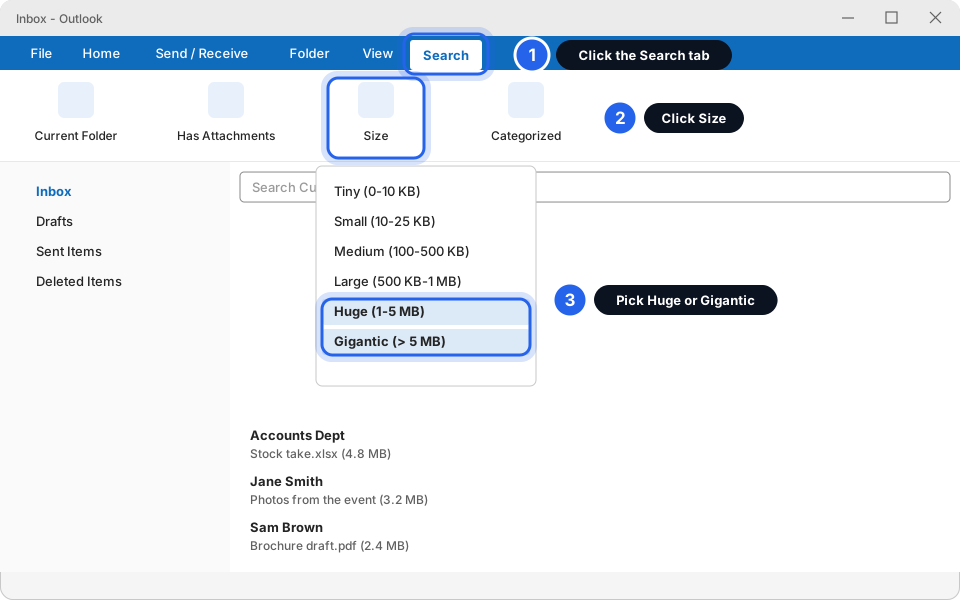
Search tab, Size, then Huge or Gigantic.Click picture to enlarge
New Outlook
-
Click Filter above your mail list
Choose Has attachments. Then use the sort option in the same menu (Sort by) and choose Size if you see it. The biggest emails come first. The menu wording may differ slightly in your version.
-
Look for the biggest
Folders such as Sent Items often hold big files you sent months ago. Check them too.
4. Save the attachments, then delete the email
If you still need a big file, save it to your PC first. Then the email can go.
-
Open the email with the big attachment
Double-click it so it opens in its own window.
-
Click the attachment, then Save All Attachments
Click the file (for example Stock take.xlsx). The Attachments tab appears. Click Save All Attachments, choose a folder such as Documents, and click OK. In New Outlook, click the small arrow beside the attachment and choose Save as (or Download).
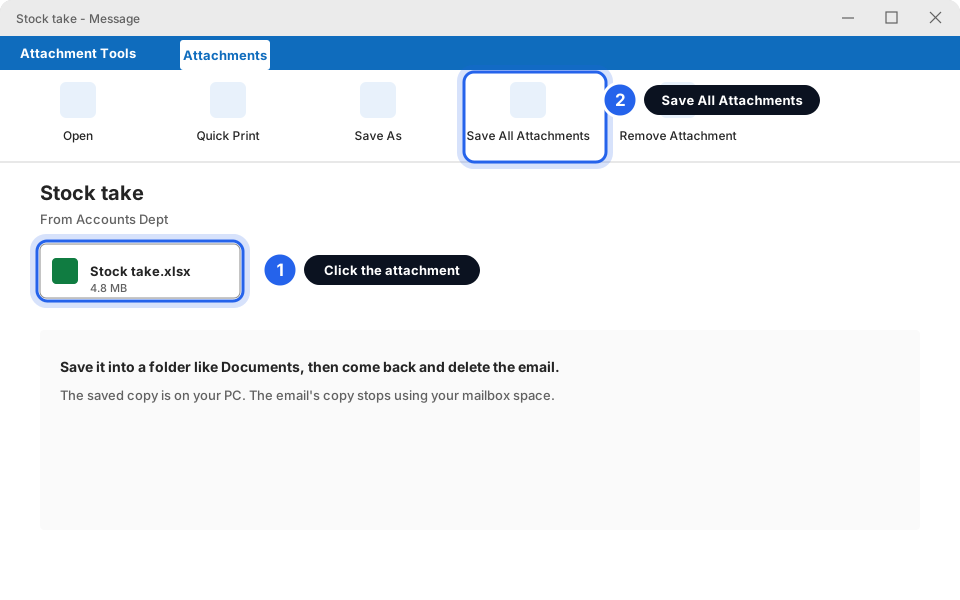
Click the attachment, then Save All Attachments.Click picture to enlarge -
Check the saved file opens
Go to the folder you chose and open the file once. If it opens, the copy is safe.
-
Delete the email, then empty Deleted Items again
Select the email and press Delete. Then repeat section 2 so the space is freed.
5. Online Archive (Microsoft 365)
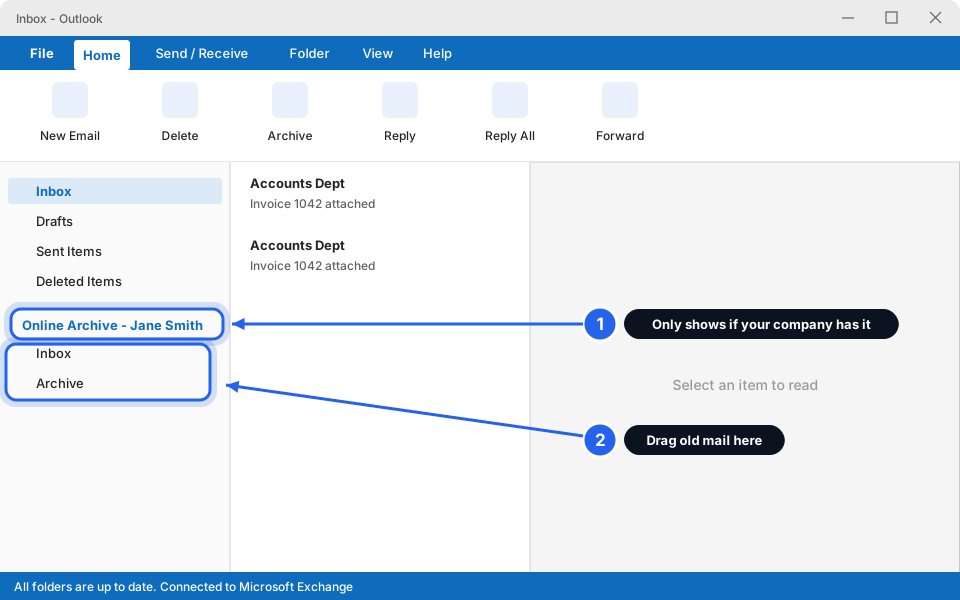
Some Microsoft 365 companies have an Online Archive, extra space for old mail that still sits in your account. If yours has it, you will see a second entry in the folder list called Online Archive - your name.
-
Look for Online Archive in the folder list
You may need to scroll the folder list. If there is no such entry, your company does not use it, so skip this section.
-
Drag old emails into it
Click an old email, hold the mouse button, drag it to the Archive folder under Online Archive, and let go. You can also select several emails at once.
-
Not there? Ask us
If you think you should have one, message us. Whether it can be turned on depends on your Microsoft 365 plan.
Skytech-hosted email: asking for more space
If your email is Skytech-hosted, each mailbox has a space limit (a quota) that we set. If you have cleaned up and are still near the limit, you do not need to keep deleting. Ask us to raise it.
-
Message us
Tell us your email address and say "mailbox almost full". If you saw a warning message, send us the words.
-
Keep emptying Deleted Items and Junk meanwhile
That gives you breathing room while we sort it out.
Why not just delete everything in Sent?
It is tempting: Sent Items is often huge. But it is a bad idea to wipe it.
Space freed
Go back to section 1 and check the bar. It should have moved. Aim to stay below about 90% full.
Still not working?
I emptied everything but the bar did not move
Give it up to an hour. The size figure does not update straight away. Close Outlook, open it again and check. If it is still the same, message us.
I deleted emails by accident
Look in Deleted Items first. Right-click the email and choose Move then Inbox. If you already emptied it, message us straight away. We may still be able to help, but the sooner the better.
I'm not receiving new email at all now
A full mailbox can block incoming mail. Free some space using the steps above, then see Email not working? Fix it in 5 minutes. People who emailed you may have received a bounce. See My email bounced.
Outlook says the "mailbox is full" and I can't even delete
Deleting uses a little space, so a completely full mailbox can feel stuck. Try emptying Deleted Items first, or try in webmail. If it will not budge, message us and we will make room.
Does a shared mailbox like info@ have its own limit?
Yes, usually its own space. Use the same steps while that mailbox is open. See Using a shared mailbox, or message us if it is full.