Work down this list, one tick at a time
-
Is it one terminal, or all of them?
Look at the other terminals before you touch anything.
Only one has a problem: carry on down this list.
All of them have the problem: it is probably the POS server or the network, not the terminals. Do not restart every terminal again and again. Message us now (see the last step) and keep serving on paper in the meantime.
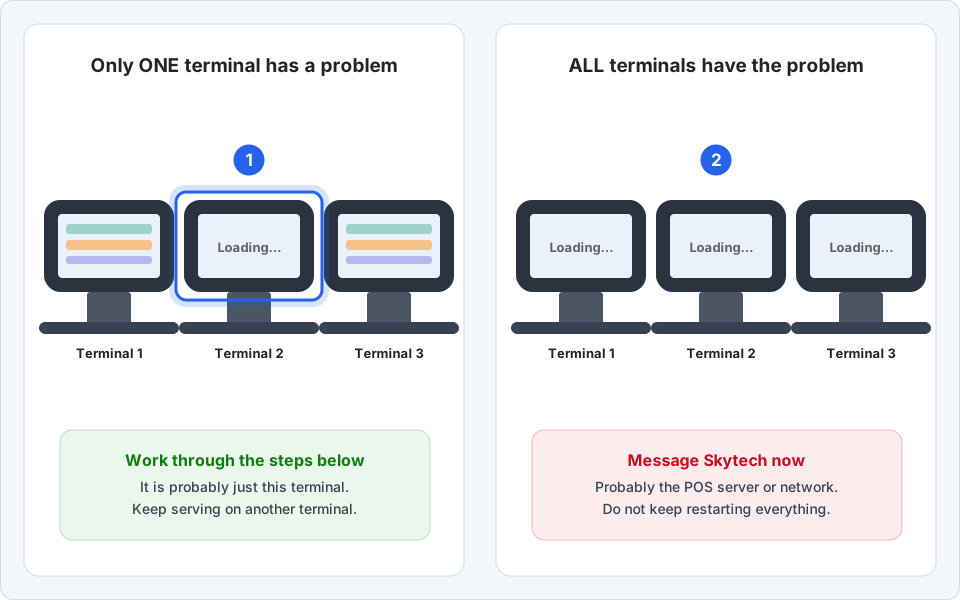
One terminal, or all of them?Click picture to enlarge -
Black screen? Check the power.
Look at the plug and the power strip first, because a loose plug is the most common cause.
- Push the terminal's power cable firmly into the power strip.
- Check the power strip switch is on (it usually has a light).
- Press the terminal's power button once, then wait a minute.
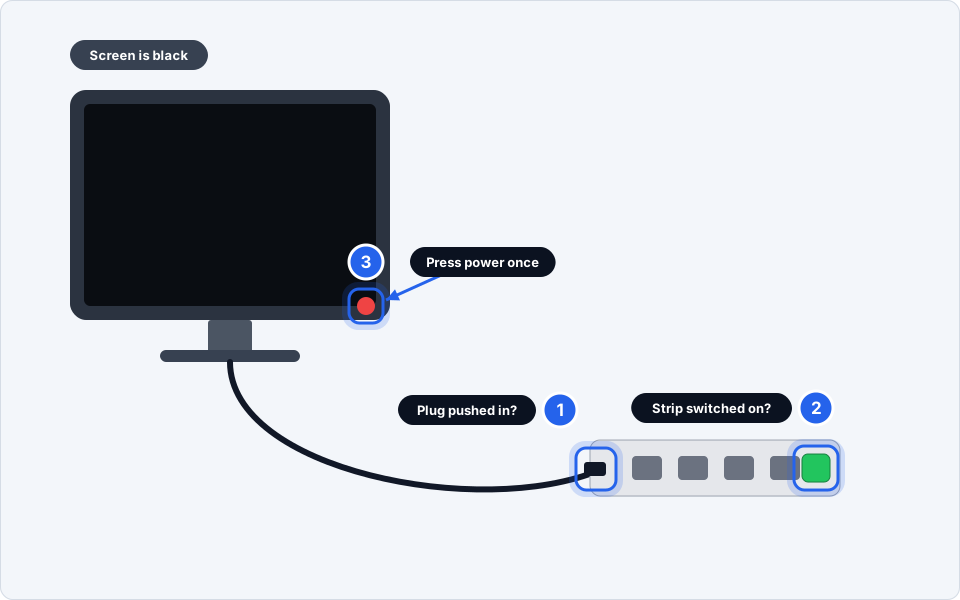
Plug, power strip, then power button.Click picture to enlarge -
Frozen? Wait 1 minute, then restart properly.
Wait a full minute. Many freezes clear on their own. If it is still stuck:
- If the screen still responds a little, use the terminal's own Shutdown or Restart option.
- If it does not respond, hold the power button for 10 seconds until it switches off.
- Wait 30 seconds, then press the power button once.
One terminal at a time. Do not restart all of them together.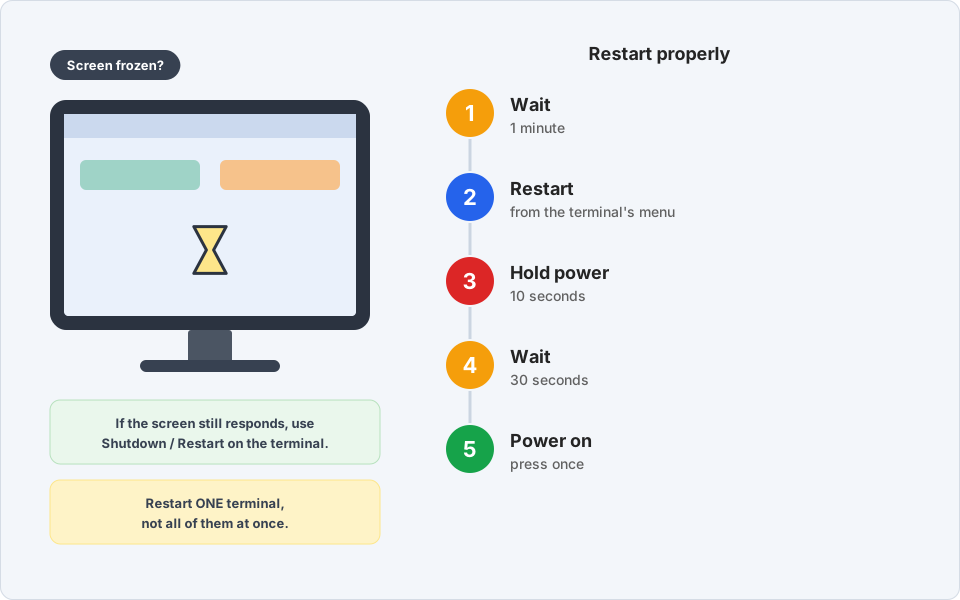
Restart one terminal at a time.Click picture to enlarge -
Stuck on "Loading data" or "Connecting"?
This usually means the terminal cannot reach the POS server yet. Wait 2 to 3 minutes before doing anything else.
Then look at the network cable at the back of the terminal. It should be pushed in until it clicks, and the small lights on the socket should be on or blinking.
Still stuck? Do not keep restarting. Message us.
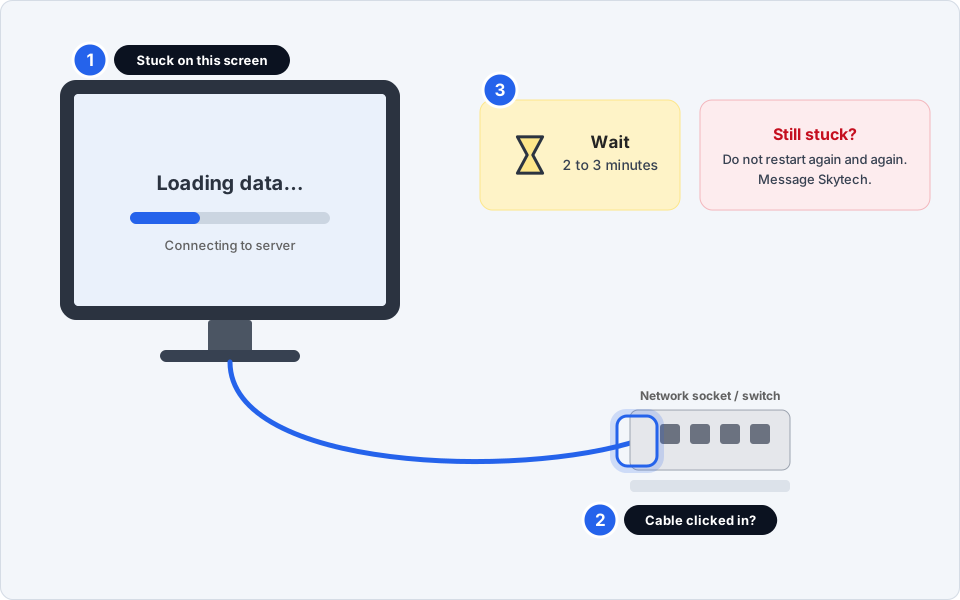
Wait, then check the network cable.Click picture to enlarge -
Touchscreen not responding, or pressing the wrong spot?
Wipe the screen with a soft, dry cloth (a little screen cleaner on the cloth is fine, never sprayed on the screen). Then restart the terminal as in the frozen step.
If the touch still lands in the wrong place after a restart, the screen needs recalibrating by Skytech. Message us and keep using another terminal.
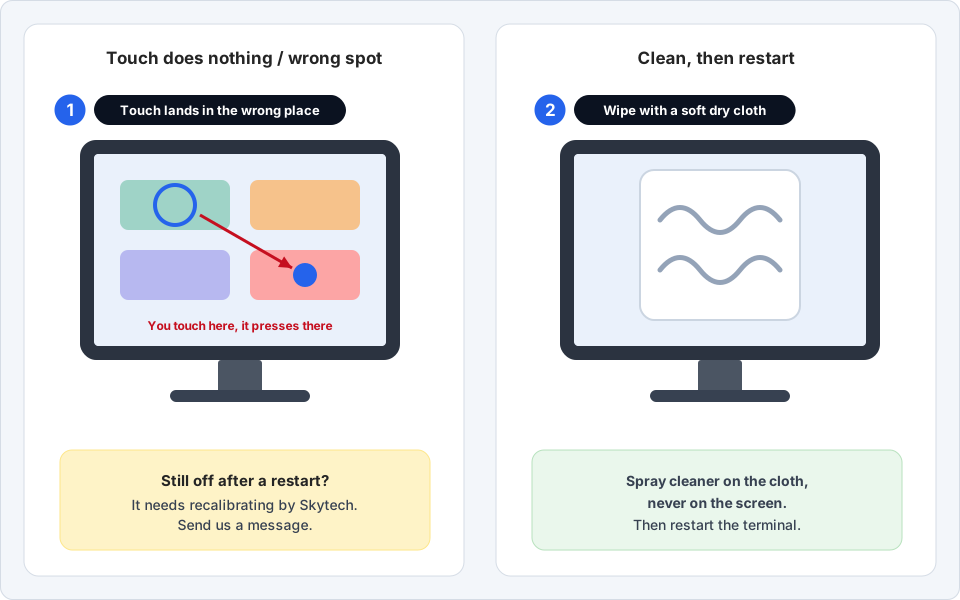
Clean it, restart it, then tell us if it is still off.Click picture to enlarge -
Receipt printer not printing?
- Is the printer's power light on?
- Is the lid closed all the way, flat?
- Is the paper roll in the right way round? The paper should come off the bottom of the roll, toward you.
- Is there paper left? A roll that is nearly finished shows a coloured stripe.
Nothing prints from any terminal? Message us.
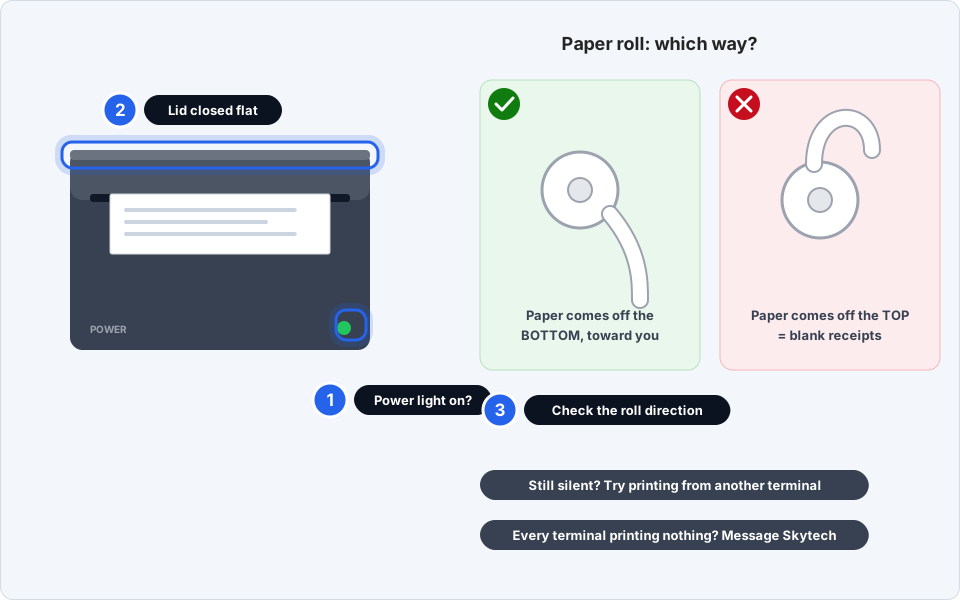
Power light, lid, paper roll direction.Click picture to enlarge -
Keep serving while you wait
Use another terminal if one is working, or write orders on paper and enter them later. Do not unplug network equipment or restart the server yourself.
-
Message us with these four things
- Which outlet and which terminal (for example "Main restaurant, Terminal 2").
- A photo of the screen (see taking a screenshot if you prefer).
- Is it one terminal or all of them?
- What you already tried, and roughly when it started.
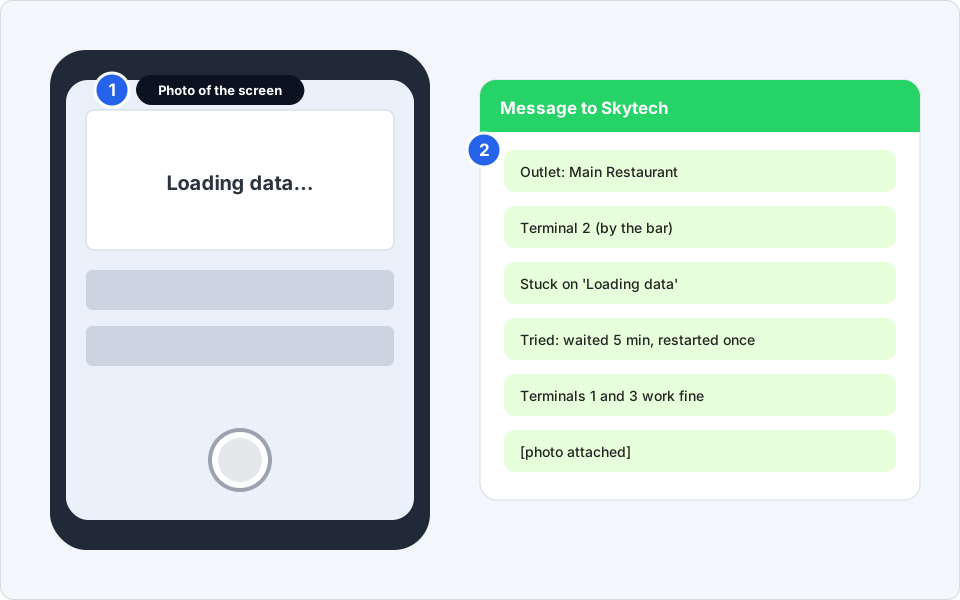
A photo plus these details lets us start straight away.Click picture to enlarge
Back to taking orders
If the terminal works again, run one test order or reprint a receipt to be sure. If it went wrong more than once today, tell us so we can look for the cause.
Still not working?
All the terminals went down at the same time
That points to the POS server or the network, not the terminals. Do not keep restarting them. Message us, and take orders on paper meanwhile. If there was a power cut, see what to restart and in what order.
The terminal keeps freezing every few hours
Tell us which terminal and roughly what time it freezes. Repeated freezing can be a faulty terminal, a bad cable, or a busy system, and we can check from our side.
The terminal started but the buttons are missing or wrong
This is often a menu update that has not loaded. Wait a few minutes after a restart. If buttons are still missing or prices look wrong, send us a photo. To change buttons or prices on purpose, see how to request menu changes.
The receipt printer prints, but the kitchen or bar printer does not
Check that printer's power light, lid and paper first, as in the printer step. If those are fine, tell us which printer it is and which terminal sent the order.
I restarted it and now it says "Connecting"
Give it 2 to 3 minutes. If it is still connecting, check the network cable, then message us. Please do not keep restarting.