Make a rule that sorts email for you
A rule is a standing instruction. Example: every email from orders@supplier.com goes into a folder called Supplier orders. Outlook then does it for you every time.
New Outlook (gear icon at the top-right)
-
Right-click an email from that person
In your Inbox, right-click one message from the sender. Click Rules, then Create rule.
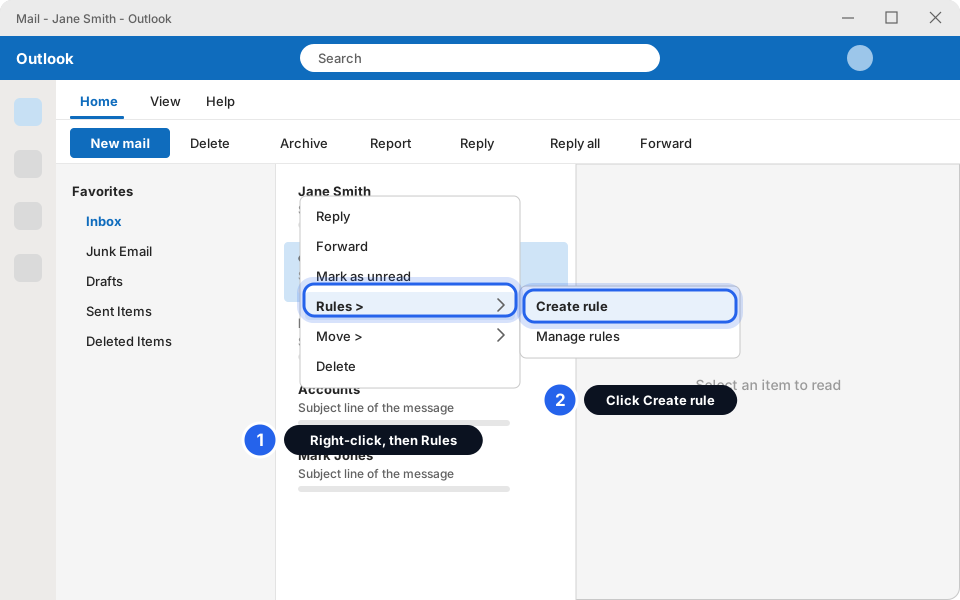
Right-click, then Rules, then Create rule.Click picture to enlarge -
Check who it is from and choose the folder
A small box opens with the sender already filled in. Click the folder box and pick your folder. Want more choices (a name, other conditions, exceptions)? Click More options, fill them in, then click Save.
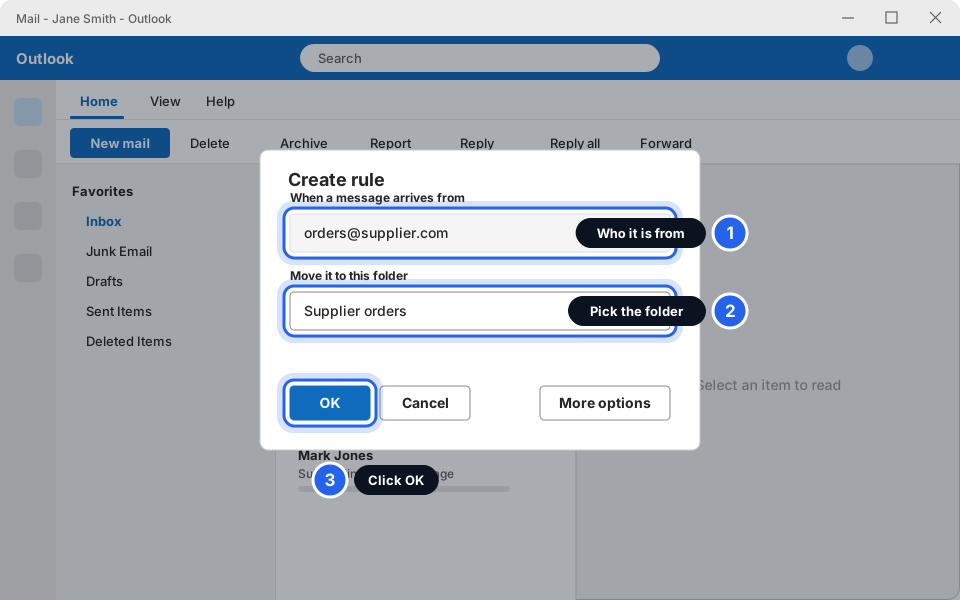
Sender, folder, then OK.Click picture to enlarge -
Click OK
The rule starts working on new email straight away. It may not move email already in your Inbox. Move those by hand.
Classic Outlook (File, Home, Send / Receive tabs)
-
Right-click an email from that person
In your Inbox, right-click one message from the sender. Click Rules, then Create Rule....
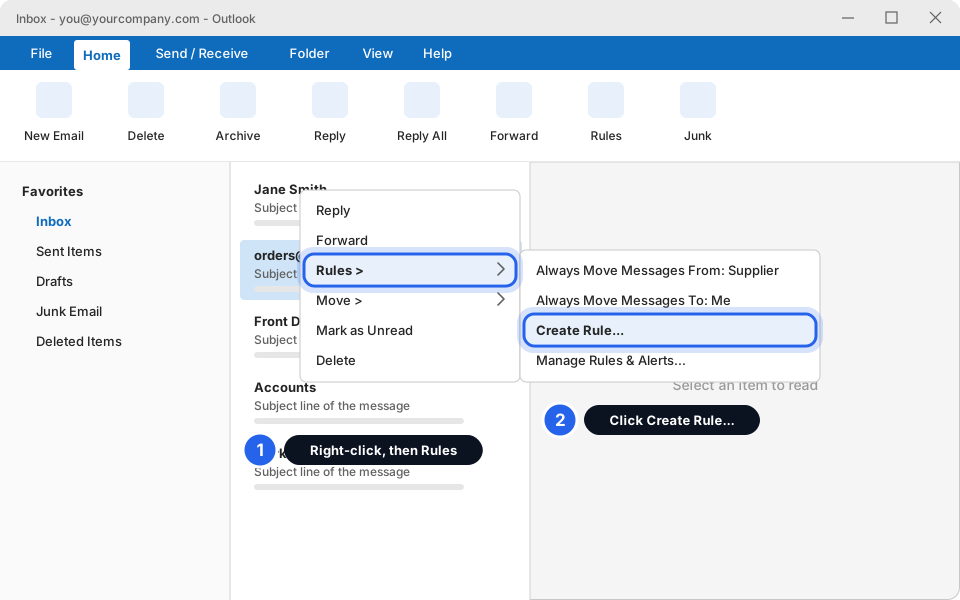
Right-click, Rules, then Create Rule.Click picture to enlarge -
Tick From
In the Create Rule box, tick the line that starts with From.
-
Tick Move the item to folder and click Select Folder...
Pick your folder from the list and click OK. The folder name now shows beside the tick.
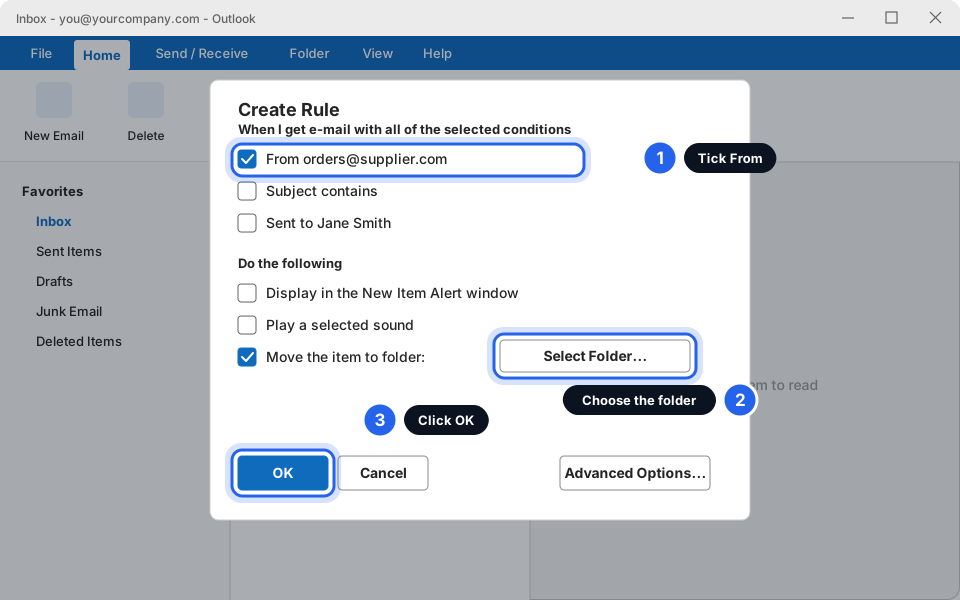
Tick From, pick the folder, then OK.Click picture to enlarge -
Click OK
A box says Success. Tick Run this rule now on messages already in the current folder if you want old email moved too, then click OK.
Your rule is working
Next time that sender emails you, the message should go straight into your folder. Check the folder, not the Inbox.
Turn a rule off or delete it
If a rule is moving the wrong email, or you no longer need it, switch it off. Switching off keeps it for later. Delete only if you're sure.
New Outlook
-
Open Mail settings
Click the gear icon at the top-right of Outlook. Click Mail, then Rules.
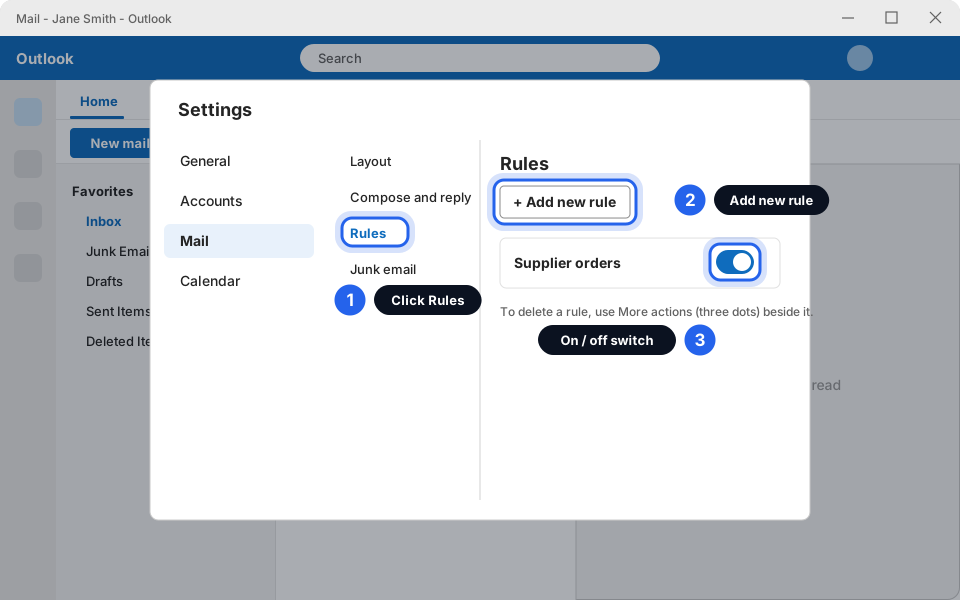
Gear, Mail, Rules.Click picture to enlarge -
Switch the rule off, or delete it
Click the switch beside the rule to turn it off. To remove it for good, click More actions (the three dots) beside the rule, then Delete. Click Save if you see it.
Classic Outlook
-
Open Manage Rules & Alerts
On the Home tab, click Rules, then Manage Rules & Alerts....
-
Untick the rule, or click Delete
To switch it off, untick the box beside the rule. To remove it, click the rule then click Delete. Click OK to finish.
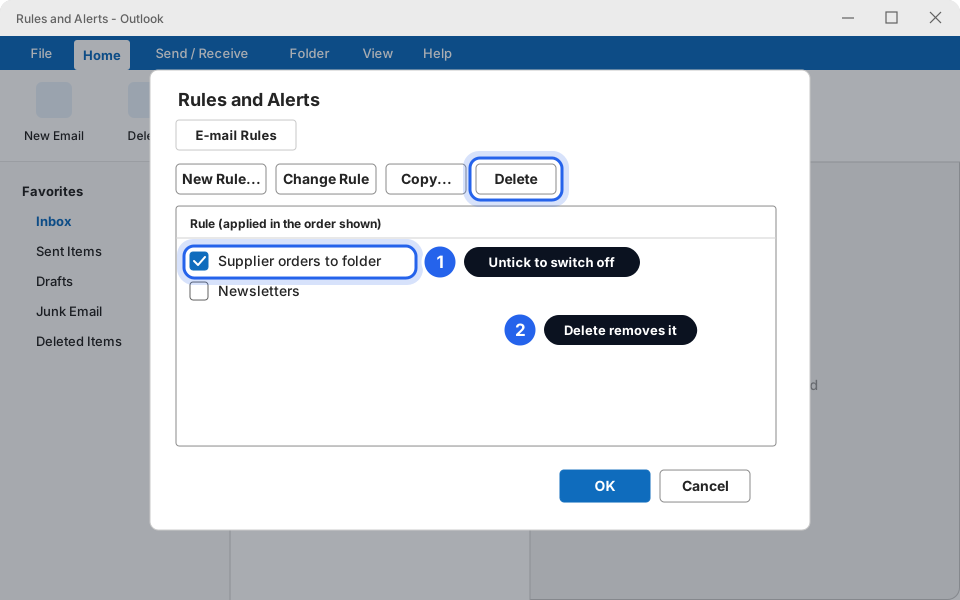
Untick to switch off, Delete to remove.Click picture to enlarge
A real email went to Junk
Outlook sometimes guesses wrong. Look in Junk Email now and then (at least once a week), especially if you are waiting for something. Real email can hide there.
New Outlook
-
Open the Junk Email folder
In the folder list on the left, click Junk Email. (If you don't see it, click the little arrow beside your mailbox name to expand the list.)
-
Click the email, then Report and Not junk
Click the message, then click Report at the top (on the Home tab) and choose Not junk. You may also see Not junk when you right-click the message. Outlook moves it back to your Inbox. If a small box asks about reporting, you can choose Don't report or Report. Either way it's moved.
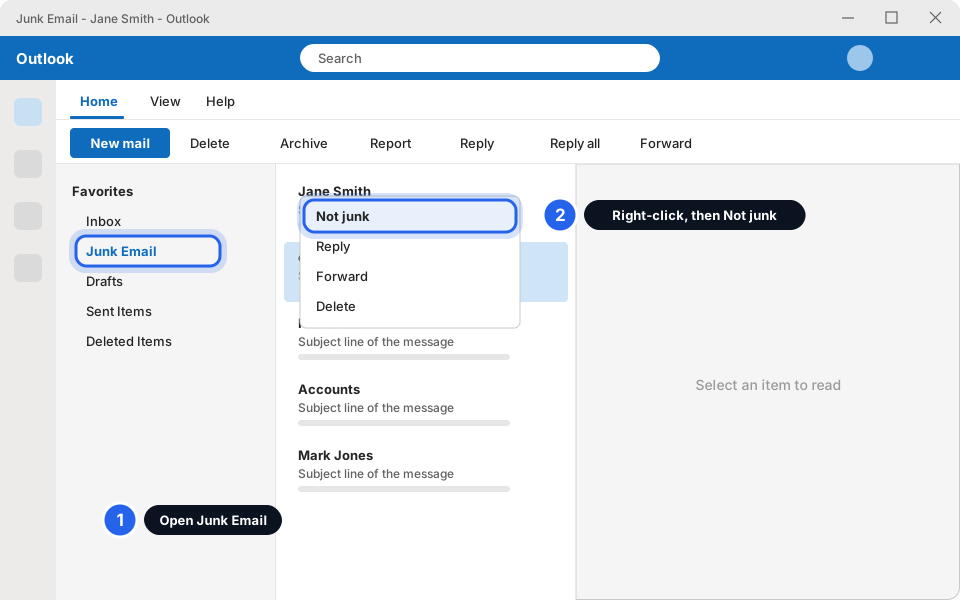
Open Junk Email, then Not junk.Click picture to enlarge
Classic Outlook
-
Open the Junk Email folder
In the folder list on the left, click Junk Email. Click the message you want to rescue.
-
Click Junk, then Not Junk
On the Home tab, click Junk (newer versions call this button Block) and choose Not Junk. Click OK if a box appears. The message goes back to your Inbox.
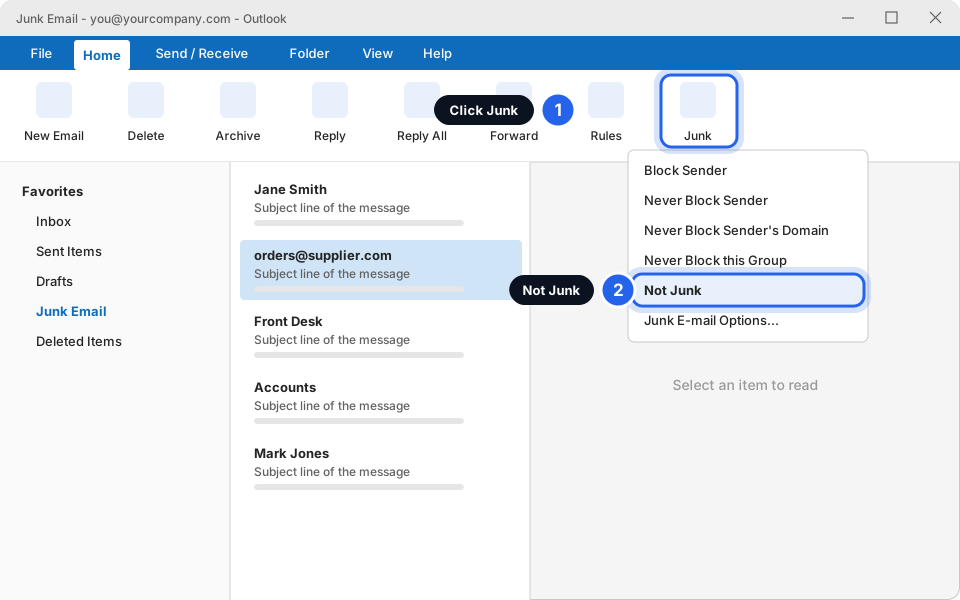
Home, Junk, Not Junk.Click picture to enlarge
Stop it happening again (Safe senders)
Add a trusted address to your Safe senders list, so Outlook never sends it to Junk.
New Outlook
-
Open Junk email settings
Click the gear icon at the top-right. Click Mail, then Junk email.
-
Click Safe senders and domains, then + Add safe sender
Type the person's full email address (for example orders@supplier.com) and press Enter or click OK. Click Save.
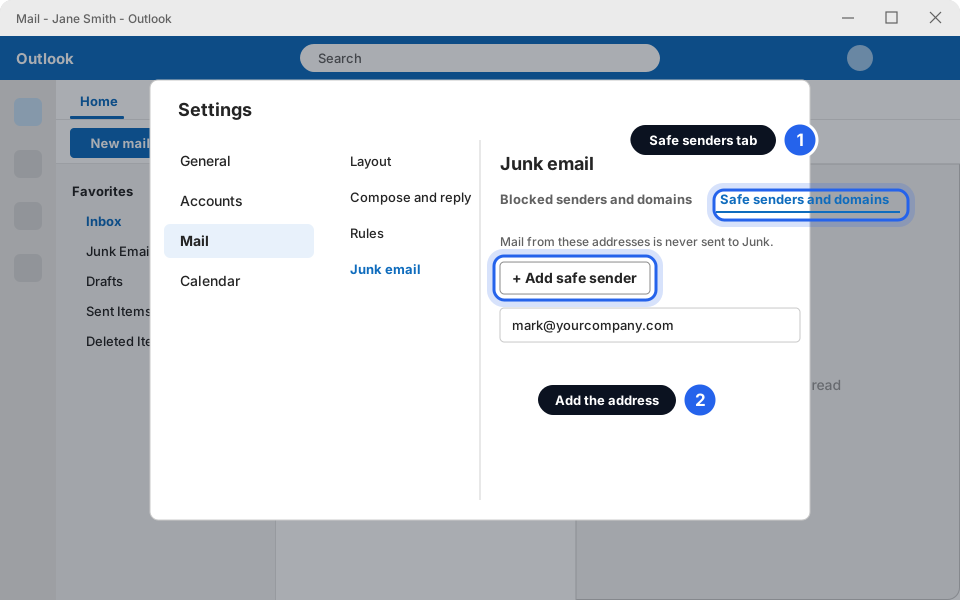
Safe senders and domains, then Add.Click picture to enlarge
Classic Outlook
-
Open Junk E-mail Options
On the Home tab, click Junk, then Junk E-mail Options....
-
Click the Safe Senders tab, then Add...
Type the person's full email address and click OK. Click OK again to close the box.
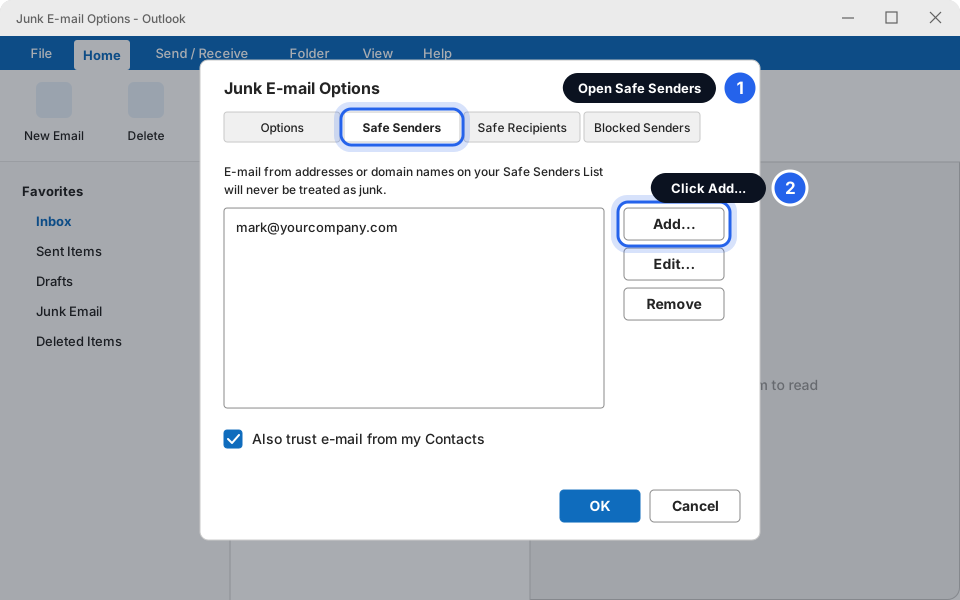
Safe Senders tab, then Add.Click picture to enlarge
Block a sender you don't want
New Outlook
-
Right-click the email
Right-click the message, click Block (it may be under Report), then click Block sender.
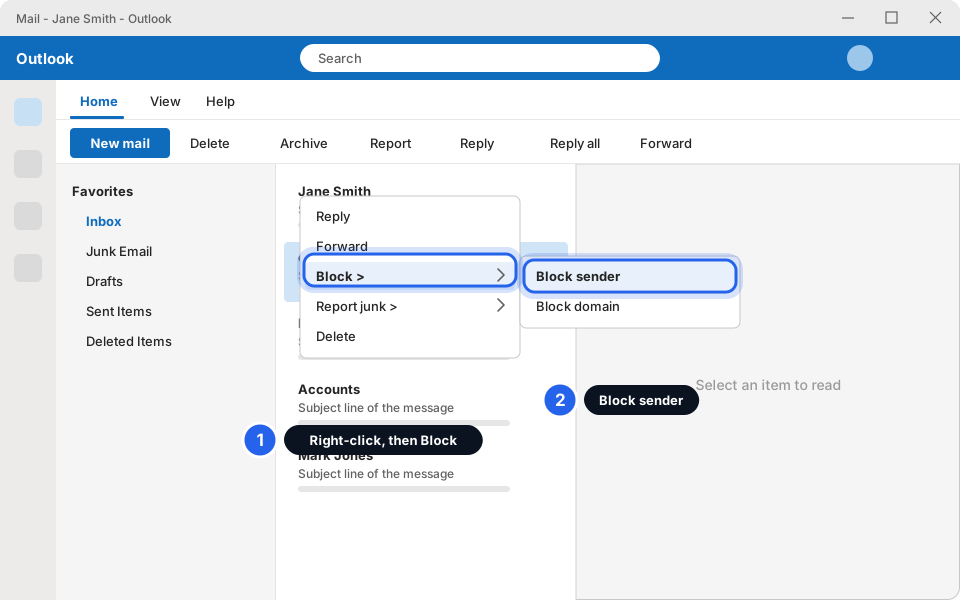
Right-click, Block, Block sender.Click picture to enlarge -
Confirm
Click OK if asked. Future messages from that address go to Junk Email.
Classic Outlook
-
Click the email, then Junk
Click the message. On the Home tab, click Junk, then Block Sender.
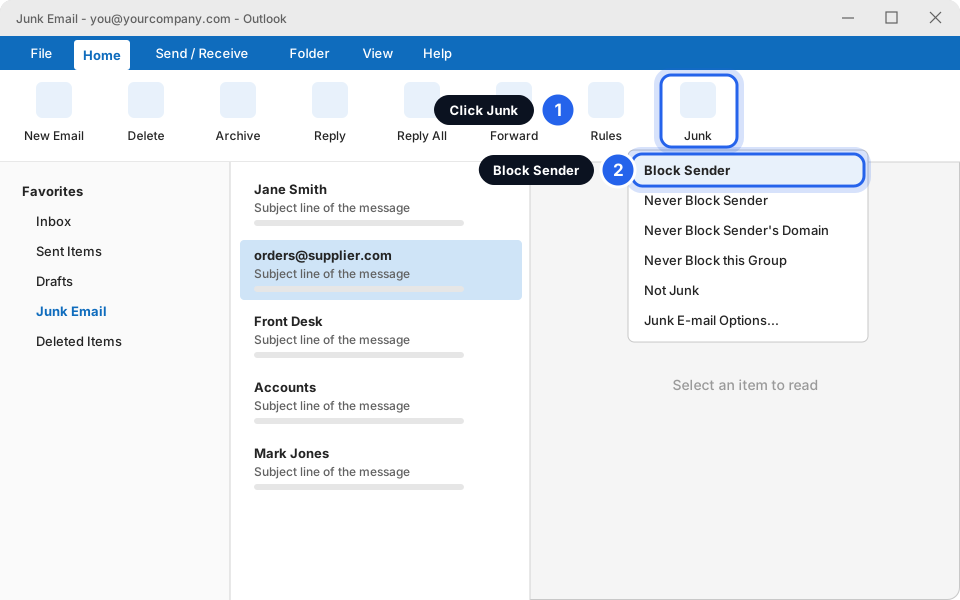
Home, Junk, Block Sender.Click picture to enlarge -
Click OK
Outlook tells you the sender was added to the Blocked Senders list.
Still not working?
My rule doesn't seem to work
Open your rules list (see Turn a rule off or delete it) and check the rule is switched on. A rule only sees new email, and a rule higher in the list may take the message first. Also check that the sender's address matches exactly.
Email still goes to Junk after I added a safe sender
Check the address is spelled exactly right, then try again. Sometimes the email comes from a different address than the name shows. Click the sender's name in the message to see the real address.
I can't find the Rules or Junk options
Make sure you're looking in the right version. Classic Outlook has a Home tab with Rules and Junk buttons. New Outlook uses the gear icon. If neither matches, message us a screenshot.
Important email keeps vanishing
Look in Junk Email, Deleted Items and any folder a rule might be using. If a rule is moving it, switch it off. If you can't find it, see Email not working?
I found a rule I didn't create
Delete it and message us straight away. Unknown rules, especially ones that forward or delete email, can mean someone else has been in your account.