Fix “Unlicensed Product” in Office
-
Spot the bar at the top
Open Word, Excel or Outlook. You may see a red or yellow bar under the ribbon with words like Product Notice, Unlicensed Product or Activation required. The title at the top may also say (Unlicensed Product). Most buttons will be greyed out.
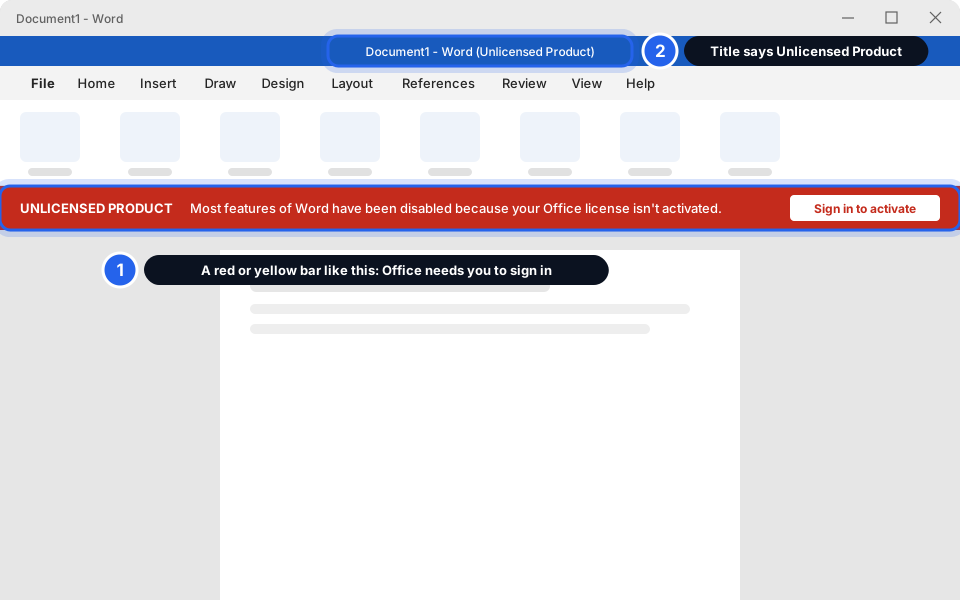
A bar like this means Office needs you to sign in.Click picture to enlarge -
Click File, then Account
File is the first tab at the top left. In the black or blue list on the left, click Account near the bottom. In Excel, PowerPoint and Outlook it may say Office Account.
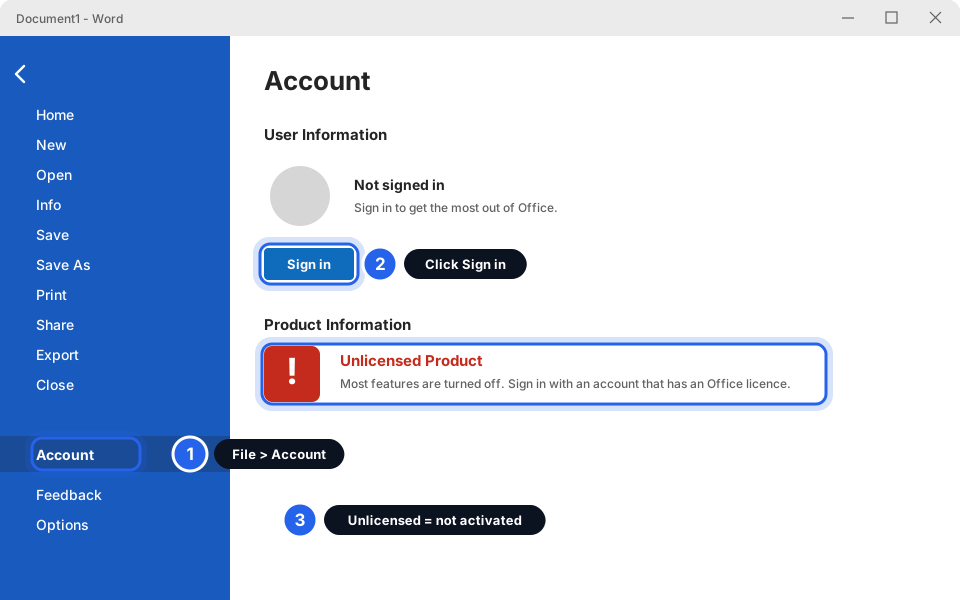
File, then Account, then Sign in.Click picture to enlarge -
Click Sign in and type your work email
Type your work email address, then click Next. Type your password. If your phone buzzes, open Authenticator and approve it.
Use your work email, not a personal one. A personal Hotmail, Outlook.com or Gmail address has no Office licence from your company, so Office will stay unlicensed. If it asks Work or school account or Personal account, choose Work or school account.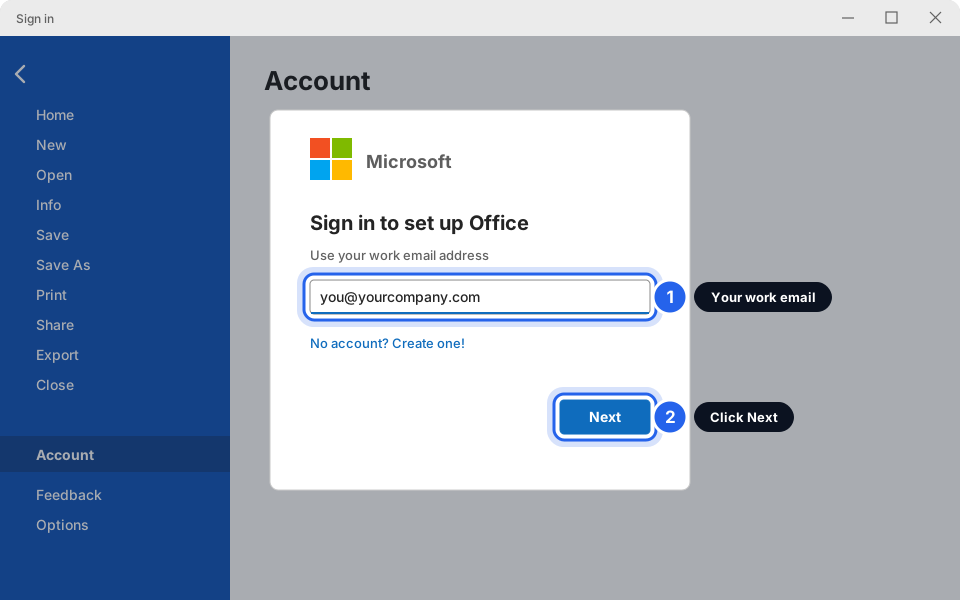
Work email, then Next.Click picture to enlarge -
Check the Product Information box
Back on the Account page, look under Product Information. You should see Microsoft 365 Apps for business (or for enterprise) and your work email. The red bar disappears. If you see it, you are done.
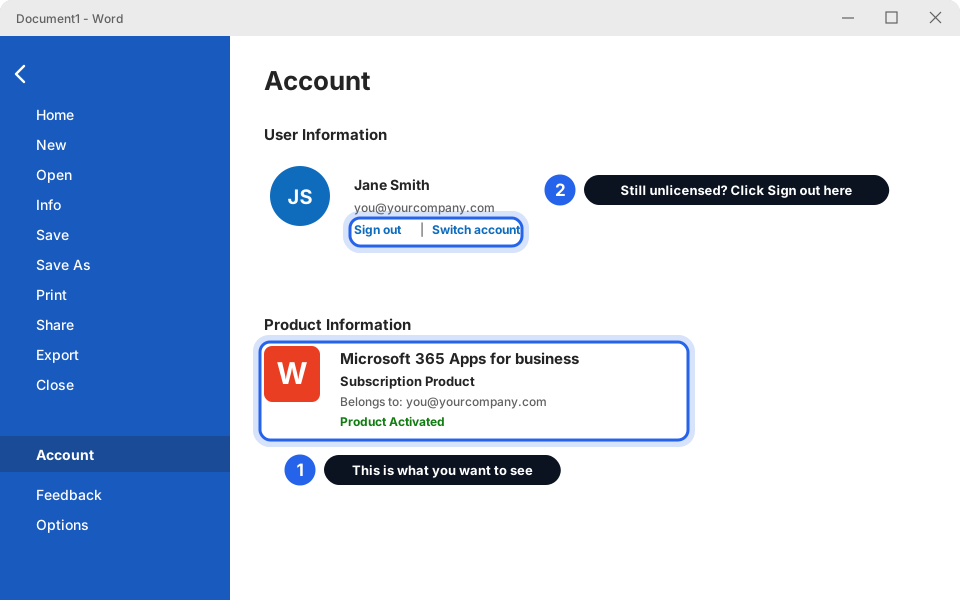
This is what a working Office looks like.Click picture to enlarge -
Still unlicensed? Sign out, close everything and sign in again
If you're signed in but the bar is still there: on the same Account page click Sign out (just under your name). Close all Office apps: Word, Excel, Outlook, PowerPoint, Teams. Open Word again and repeat from step 2.
-
Restart the computer
Click the Start button, then the Power icon, then Restart. Not Shut down. Wait for Windows to start, open Word and look at the Account page again.
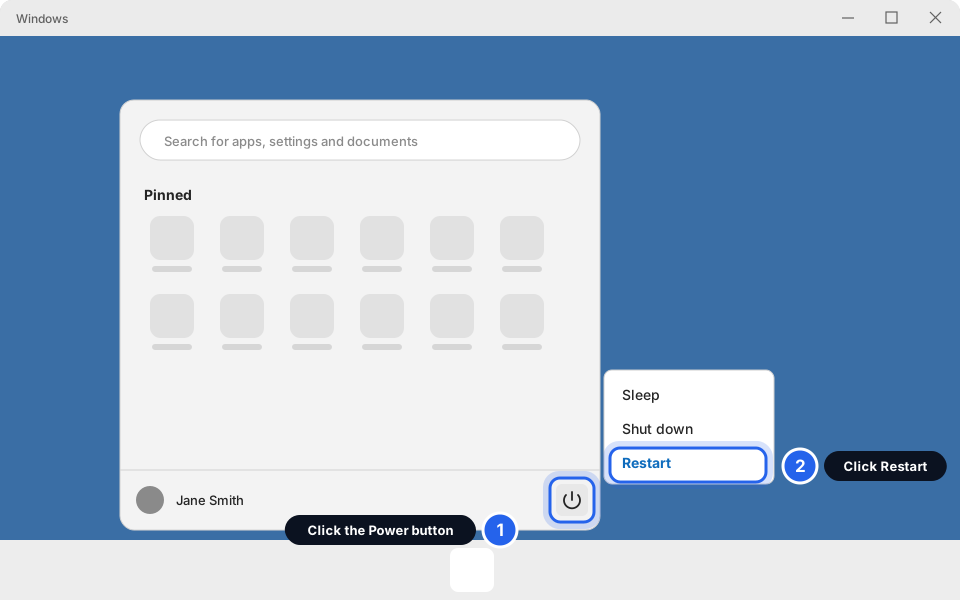
Start, Power, Restart.Click picture to enlarge -
Still not right? Message us
Your licence may have been removed or not yet added. This is common for new staff, or if someone's role changed. We need to assign you one from our side. Send us the message below and a picture of the Account page (how to take a screenshot).
Hi Skytech, Office says Unlicensed Product on my PC. My work email is [you@yourcompany.com]. I have signed in, signed out and restarted. A picture of the Account page is attached.
Office is activated
All your Office apps share the same sign-in, so Word, Excel and Outlook should now work. Office checks your licence online now and then, so connect to the internet at least once a month.
Adobe asks me to sign in or start a trial
Adobe Acrobat Reader is free and is all you need to read and print PDFs. Adobe Acrobat (the paid one) can also edit them, but it needs a licence and a sign-in. If a window pops up asking you to sign in or start a free trial, and you only wanted to read a PDF, you don't need to do either.
-
Close the Adobe window
Click the X in the top right corner of the box. Don't click Start free trial, and don't type your email or card details.
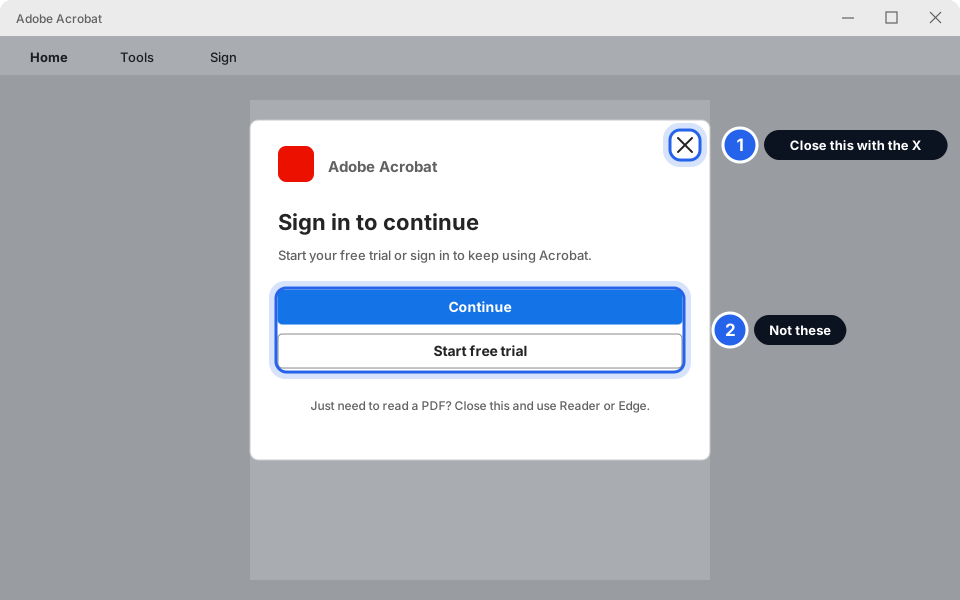
Close it with the X.Click picture to enlarge -
Open the PDF in Microsoft Edge instead
Find the PDF in File Explorer. Right-click it, choose Open with, then Microsoft Edge (or Adobe Acrobat Reader if you see it). Edge can read, print, fill in forms and let you draw a signature.
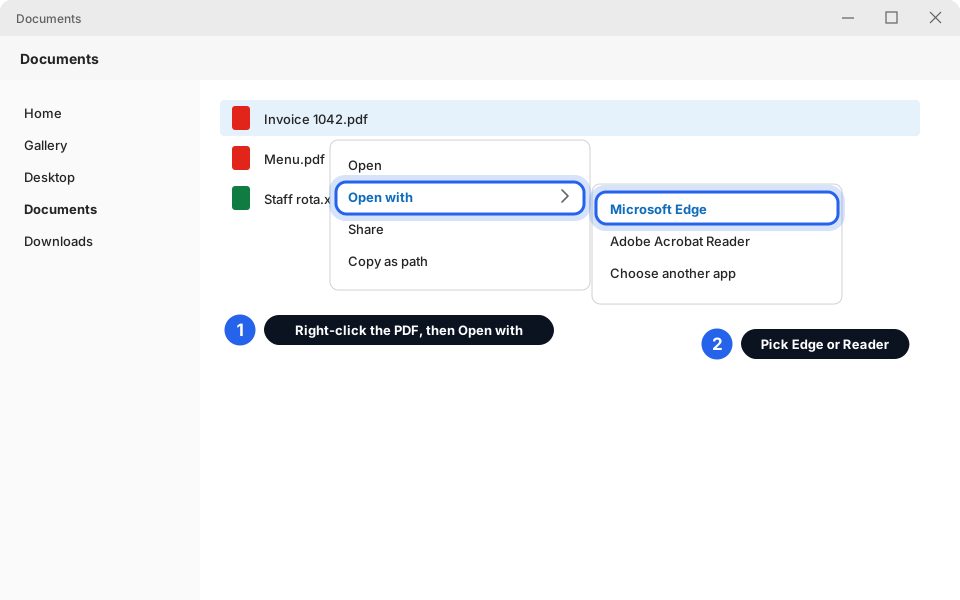
Right-click, Open with, Microsoft Edge.Click picture to enlarge -
Make PDFs open that way every time
Click Start, then Settings, then Apps, then Default apps. In the box under Set a default for a file type or link type type .pdf. Click the app shown and choose Microsoft Edge or Adobe Acrobat Reader. Click Set default.
Pick Reader or Edge, not the paid Acrobat, unless you have a licence for it.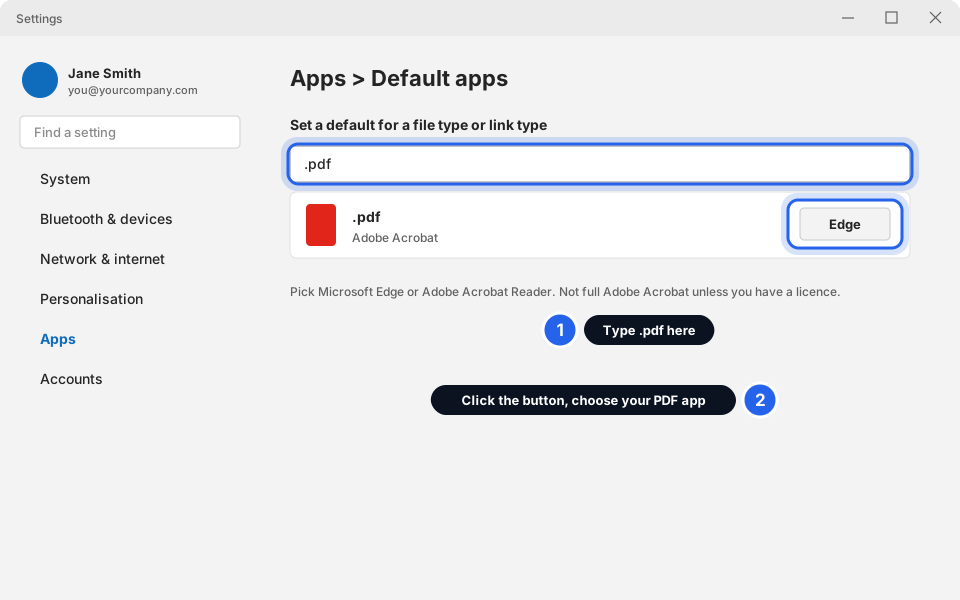
Settings, Apps, Default apps, type .pdf.Click picture to enlarge
Still not working?
I only have a personal Hotmail or Gmail
That can't activate your company's Office. Sign in with your work email. If you don't have one, message us.
It keeps asking me to sign in again
Make sure you click Sign in in the Office Account page, not Not now. If it asks again every day, sign out, restart and sign in again. Then message us if it keeps happening.
Only one app, like Excel, says unlicensed
Open File > Account in that app and sign in there. Close and reopen it.
The bar says my subscription has expired or there's an account problem
Message us. This one is on the licence side and we need to fix it.
Office asked me to “Allow my organisation to manage this device”
On a company PC click OK. On your own or home PC click No, sign in to this app only so only Office is signed in. If unsure, ask us first.